📋 Test Cases
The Test cases sub-tab is the case library. As the screen puts it: "All cases, whatever their origin. A cycle references these cases, it does not copy them." Because cycles reference cases rather than copy them, a change to a case in the library applies in every cycle that references it.
A case enters the library in one of two ways:
- Import one or more Gherkin files with "+ Import cases".
- Record it from SAP GUI with "Record in SAP GUI" (see Recording from SAP GUI).
The "+ New case" button is marked "coming". The screen says: "Creating a single case comes with the chat; until then, import a Gherkin file."
The library
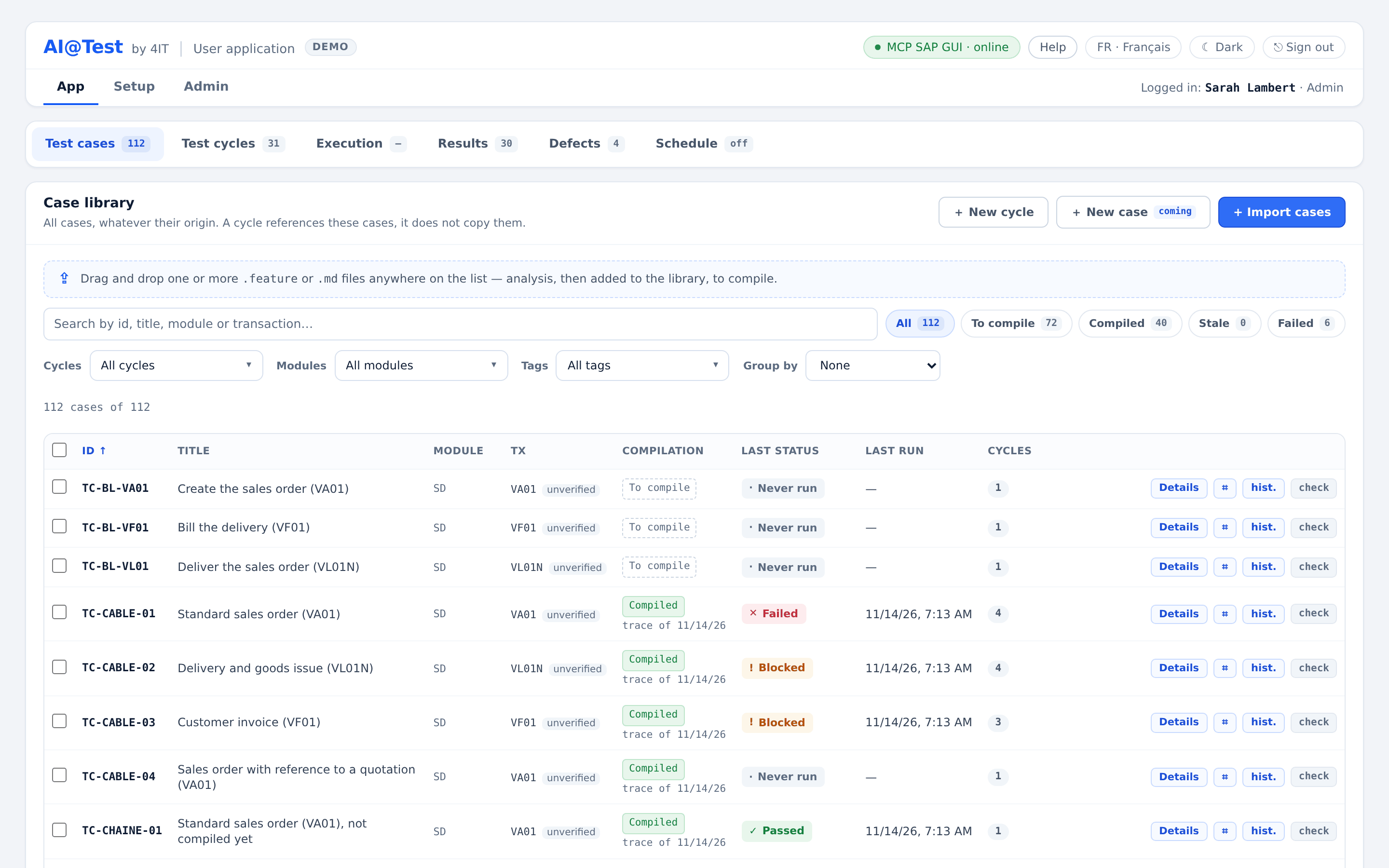
The actions sit at the top of the library: "+ New case" (coming), "Record in SAP GUI" (if your instance offers recording) and "+ Import cases". You can also drag and drop .feature or .md files anywhere on the list. Dropped files go through the same analysis as an import before they are added.
The list shows 50 cases per page; "‹ Previous" and "Next ›" move between pages.
Search
Type in "Search by id, title, module or transaction…". The search keeps the cases whose identifier, title, module or any of their transactions contains your text, ignoring case. The counter reads, for example, "12 cases of 40".
Status filters
Only one chip can be active at a time. Each chip shows how many cases match it within your search and list filters:
| Chip | Shows |
|---|---|
| All | Every case. |
| To compile | Cases that have no trace yet. A stale case is not counted here. |
| Compiled | Cases whose trace proves their current Gherkin. |
| Stale | Cases whose trace no longer holds. |
| Failed | Cases whose last status is a probative failure. An INFRA failure is not counted here. |
Filters by cycle, module and tag
Three drop-down lists narrow the library further. Each list has a fuzzy search:
- Cycles: one or more cycles, or "Not in any cycle" for the cases no cycle references.
- Modules: one or more SAP modules, such as SD or MM.
- Tags: one or more tags, or "No tag".
"Reset filters" clears all of them.
Group by
"Group by" arranges the list in groups: "None", "Cycle", "Module" or "Tag". Each group shows its number of cases, and you can collapse or expand it.
Columns
| Column | What it shows |
|---|---|
| ID | The identifier of the case, such as TC-OTC-01. |
| Title | The title of the case. |
| Module | The SAP module from the @module: tag of the case. If the case has no such tag, the module is inferred from the first transaction cited and marked "inferred". |
| Tx | The first transaction the case asks to play. The tooltip shows the full list. A transaction recognized by its form alone, without the system's transaction catalog, is marked "unverified". |
| Compilation | "To compile", "Compiled" (with the date of its trace) or "Stale · recompile". |
| Last status | The status of the last run of the case that actually started, in any cycle, with its marks. |
| Last run | The date of the last run, or "Never run". |
| Cycles | The number of cycles that reference the case. |
| Actions | "Details" opens the Details panel, "⌗" opens the Gherkin, and "hist." opens Results filtered on the case across all cycles. |
A small badge on a row shows the state of the case's Consistency check on its connection, such as "check" when the case was never checked, or "3 findings". Its tooltip names the connection. Click a column header to sort by that column. By default, the list is sorted by ID.
Selecting cases
Tick cases one by one, or use "Select the cases of the page". A selection bar then offers these actions:
- Target cycle and "Add N to cycle": adds the selected cases at the end of the chosen cycle, as references to the library, not copies. "+ New cycle" creates a cycle on the spot.
- Archive: archives the selected cases (see Archiving below).
- Deselect: clears the selection.
Statuses of a case
Compilation state
Each case has one of three compilation states, computed from its Gherkin and its trace:
| On screen | Meaning | At its next run |
|---|---|---|
| To compile | The case has no trace yet. Every imported case starts here. | The AI agent compiles the case while running it. This costs tokens and counts towards the instance's LLM spending cap. The exception is a case recorded from SAP GUI and imported "already reproducible": its recorded trace is validated without AI. |
| Compiled | The case has a trace that proves its current Gherkin ("trace of" a date). | The trace is replayed without AI: "replay (0 tokens)". |
| Stale · recompile | The case has a trace, but its Gherkin or its connection has changed since, so the trace no longer holds. | A new compilation is forced: the AI agent compiles the case again. |
How a case moves between states:
- A successful first compilation, whose trace passes the bar, makes the case "Compiled".
- Editing the executable content of a compiled case, in Details or by re-importing its file, makes it "Stale". Its last results become non-probative.
- Putting back exactly the Gherkin that the trace proves makes the case "Compiled" again, without a new compilation.
- Changing only the title, the Feature, the module or the tags does not change the state.
- Running a compiled case on another connection, or in another language, compiles it again ("compiled on another connection", "compiled in another language").
In Execution, "Recompile" asks the AI agent to compile a case again on purpose, for example after an SAP screen has changed.
Last status
| Status | Meaning |
|---|---|
| Passed | The run played all its steps without deviation. |
| Failed | The run found a deviation. |
| Blocked | The case was not executed. A blocked run never opens a defect. |
| Running | The run is in progress. |
| Never run | The case has not run yet. |
Some marks qualify a status:
- non-probative: the result proves nothing about the case as it is now. Either its Gherkin has changed since, or the run did not play the trace that the compilation validated, or that trace has since been found faulty.
- INFRA: the run failed because of an infrastructure outage, not a regression. INFRA failures are counted separately, never among the failed runs.
- Passed · x/y Then anchored: a passed run in which some Then steps are not proven by a reliable reading of SAP. Such a run is greyed out and counted separately under Blocked, never among the passed runs.
The Details panel
"Details" opens the case in a side panel.
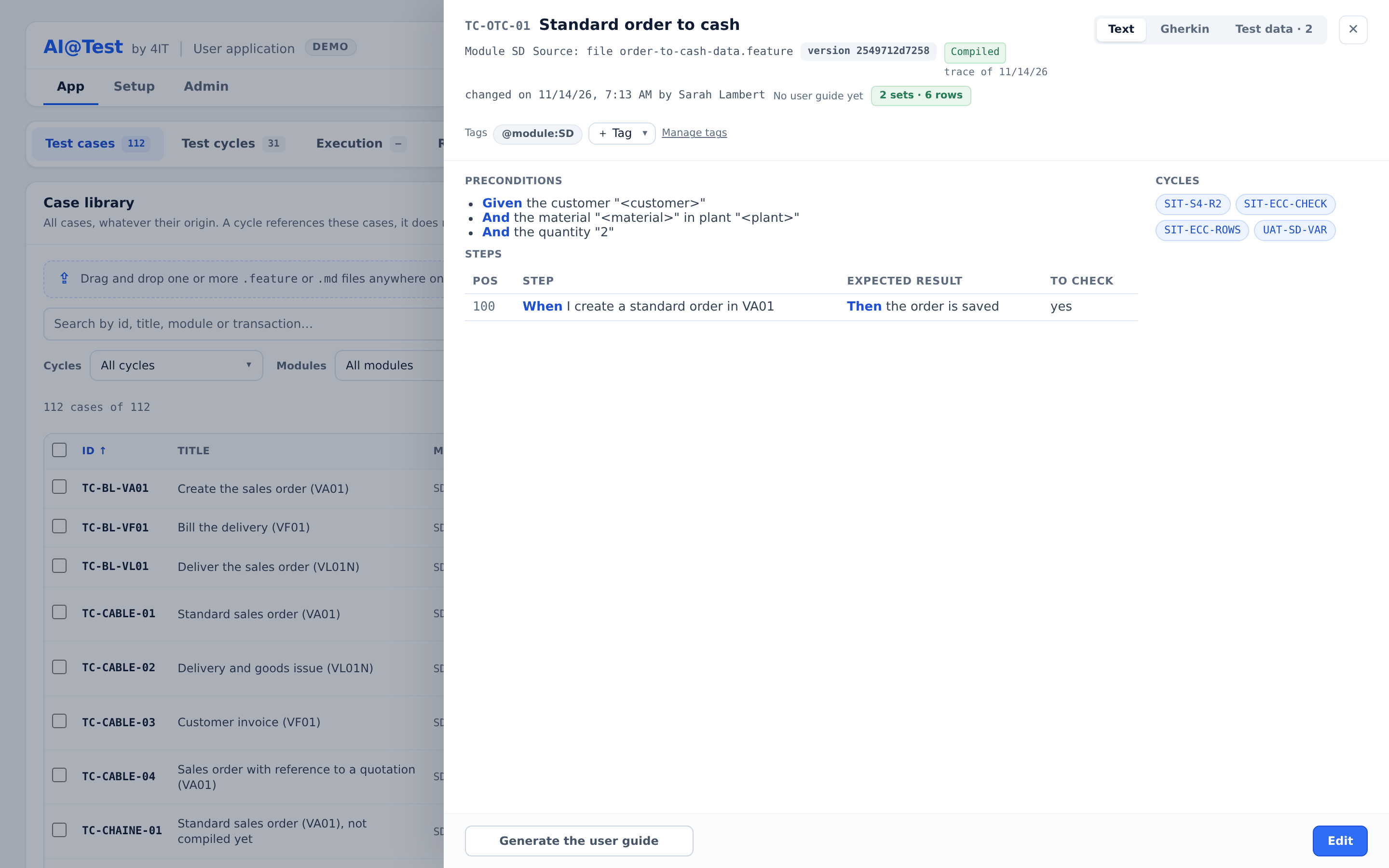
The header of the panel
The header shows:
- the identifier and the title;
- the module ("Module SD");
- the source of the case ("Source: …");
- its version (a fingerprint of its content);
- its compilation state;
- who changed it last and when ("changed on … by …").
When the case has a user guide or data sets, the header shows them too: a link for each stored guide, and a badge such as "2 sets · 6 rows".
Three views
| View | What it shows |
|---|---|
| Gherkin | The full text of the case, including its tags and its "# Variables" block. |
| Text | A reading view: "Preconditions" (the Given steps), then a "Steps" table with the columns "Pos", "Step", "Expected result" and "To check". The Background and the Examples appear only in the Gherkin view. |
| Test data · N | The data rows of the case, one data set per connection. |
In Test data, "Row 1 = baseline of the case, read-only": it holds the base values of the variables. You can work with the rows as follows:
- add rows with "+ Add row", and duplicate or delete them;
- check them against SAP with "Check rows", which uses fixed queries and no AI;
- let the agent look up valid values in SAP, read-only, with "Fetch test data";
- keep your changes with "Save data set".
Data sets are kept in AI@Test, in versions. At run time, the cycle's connection picks its data set, and each row ticked in the cycle produces one run.
Tags, cycles and the Consistency check
- Tags: "+ Tag" puts a tag from the tag list on the case. "Manage tags" opens Setup, where each tag gets a color and a description.
- Cycles: the cycles that reference the case, or "In no cycle."
- Consistency check: before compilation, a read of SAP that writes nothing. It checks that the data and configuration the case assumes exist on the connection. It reads SAP GUI connections only and covers Order-to-Cash cases (
@module:SD). Like a compilation, it counts towards the instance's LLM spending cap. Save or discard your edits first, because the check reads the saved text.
Editing a case
Admins and Testers edit a case from the panel footer with "Edit", then "Save":
- The Gherkin view edits the whole text of the case, tags included.
- The Text view edits the text of existing lines but cannot add or remove lines. To change the structure, use the Gherkin view.
Before you save, the panel tells you what will happen, for example: "The case is compiled: if saving changes its executable content, it becomes stale and its trace will be compiled again." The editor applies the same checks as the import. A Gherkin that does not conform is not saved, and your input is kept. If someone else saved the case after you opened it, your save is refused. You can then "Compare" your input with the current version, or "Reload" the current version.
An Auditor sees "🔒 Read-only — edit right required".
No automated process rewrites a Then step: not the compilation, not the data adaptation of a replay, not the Consistency check. The check can flag a Then to rephrase, but it does not rewrite it. A Then changes only through the editor or a re-import, and a changed Then makes a compiled case stale.
Importing .feature files
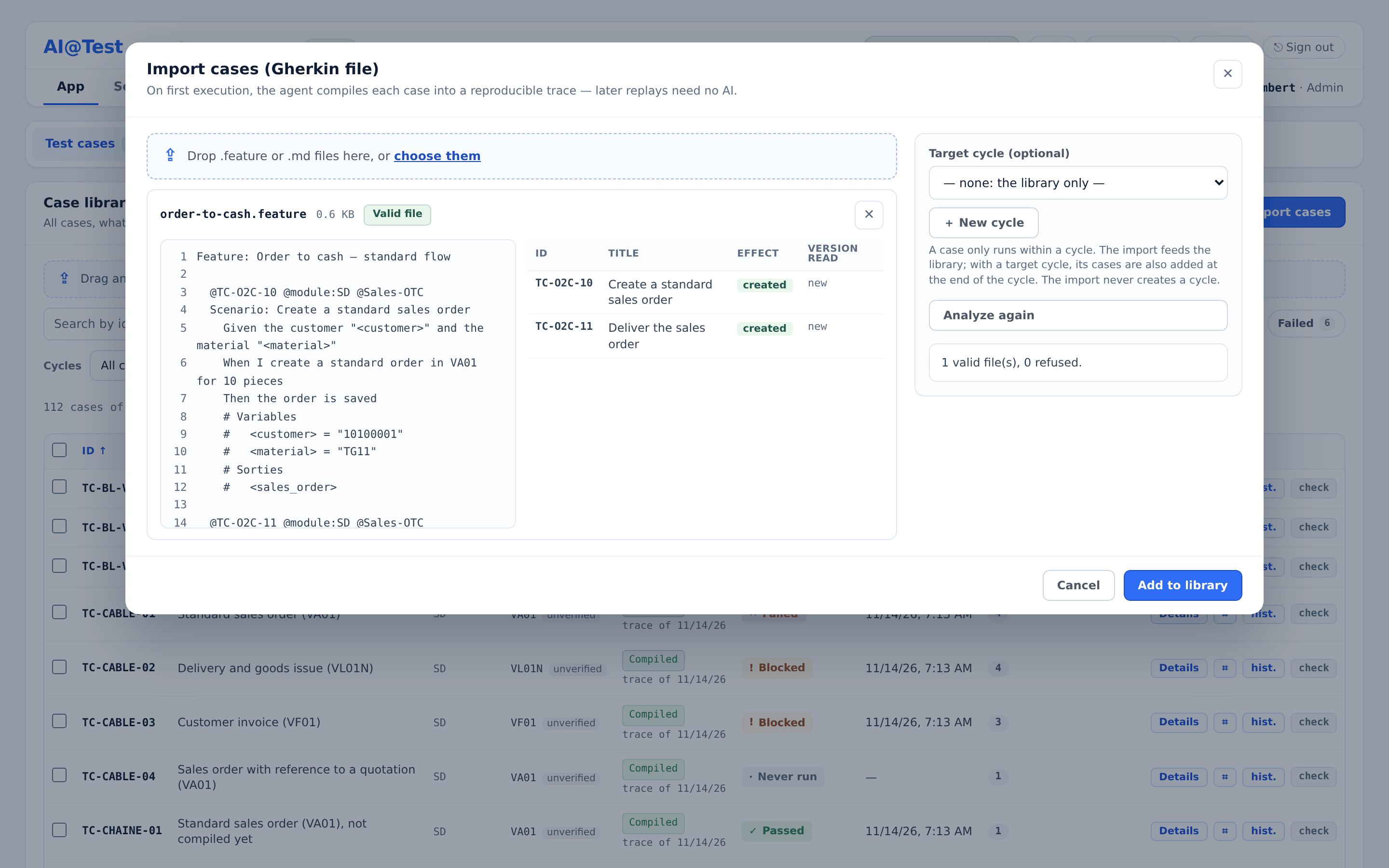
- In Test cases, click "+ Import cases".
- Drop one or more files in the dialog, or click "choose them". The import reads
.featurefiles and.mdfiles whose blocks carry Gherkin. Each file can be up to 1 MB, with up to 50 files per drop. - Optionally, choose a "Target cycle (optional)". With "— none: the library only —", the cases enter only the library. With a target cycle, they are also added at the end of that cycle. The import never creates a cycle on its own, but "+ New cycle" lets you create one from the dialog.
- Click "Analyze". The analysis checks each file before anything is written and shows, for each case, what the import will do.
- Read the verdict of each file, fix the refused ones (see below), then click "Analyze again".
- Click "Add to library", or "Add to library and to cycle …" if you chose a target cycle. Only valid files are imported.
- The dialog shows "Import done" with the totals, for example "3 case(s) created, 1 updated, 0 unchanged."
Reading the analysis
Each file gets one of three verdicts: "Valid file", "Valid file, with warnings" or "Import refused". Each error or warning gives its line ("l. 12") and tells you how to fix it. A single error refuses the whole file, and nothing is written, neither case nor cycle.
For each case, the table shows its "ID", its "Title", its "Effect" and the "Version read":
| Effect | Meaning |
|---|---|
| created | A new case enters the library ("new"). |
| updated | A case with the same identifier is updated. If that case was compiled and its executable content changed, the row shows "· becomes stale". |
| unchanged | The case is already in the library exactly as written. |
| excluded (@non-jouable) | The case carries @non-jouable, so the import does not write it. |
| locked (run in progress) | The case is running and cannot be updated now. |
With a target cycle, the analysis also shows the composition of the cycle: "Added at the end of the cycle", "Already in the cycle" and "Refused by the composition".
After an import without a target cycle, the dialog says: "To run these cases, add them to a cycle: in Test cycles, with “+ Add cases”." Click "Go to Test cycles" to continue.
When you re-import a file, the import finds the same cases by their identifier and updates them in every cycle that references them. An import into an archived cycle is refused; restore the cycle first.
How to write an importable case
The import reads Gherkin files in English or in French. The in-app help topic "Write an importable case" holds the complete list of what the import accepts and refuses. This section summarizes it.
A file the import accepts
This is the example file from the in-app help, line by line:
| Gherkin line | What it does |
|---|---|
@module:SD | Sets the SAP module of the cases in the file. |
Feature: Sales orders | One Feature per file, at the top. |
Background: | Optional. Its steps are the preconditions of every case in the file. |
Given the company code "1010" | A precondition shared by every case. |
@TC-OTC-01 @Sales-OTC | The identifier tag of the case, then a free tag. |
Scenario: Standard order | The title line of the case, with the Gherkin case keyword. |
Given the customer "<customer>" | A step that uses the variable <customer>. |
And the material "<material>" | A second variable. |
When I create the order in VA01 | The action, which names its SAP transaction. |
Then the order is saved | What the case proves. |
# Variables | Opens the variables block, after the steps of the case. |
# <customer> = "0010154801" | A variable and its base value. |
# <material> = "TG11" | Another variable and its base value. |
# Sorties | Opens the outputs block, after the variables block. |
# <order_no> | An output the case passes on to the next cases of a cycle. |
@TC-OTC-02 | The identifier of the second case. |
Scenario: Order blocked for credit | The title line of the second case. |
Given the customer "0010154802" | A fixed value, written in quotes. |
When I create the order in VA01 | The action. |
Then the order is blocked for credit | What the second case proves. |
Structure
- One Feature per file, at the top:
Feature: <title>. A French file uses the French keywords. It can also declare its language with# language: fron the first line. - An optional Background: its steps are the preconditions of every case in the file.
- Cases: each case sits under its own title line, written with the case keyword shown in the example, and has at least one step:
Given,When,Then,AndorBut. - Blank lines and comments (
#) are ignored.
Tags
- Identifier: put a tag
@TC-followed by unaccented letters, digits, ".", "_" or "-" above the title of each case, such as@TC-OTC-01. Without it, the identifier is derived from the title. When you re-import the file, the import finds the same cases and updates them. - Module:
@module:SDsets the SAP module. The closest tag wins: the tag on the case, then the tag on the Feature. - Free tags: tags such as
@Sales-OTC, to filter and group cases. A tag is a single word, without spaces. - Exclusion:
@non-jouableon a case excludes it. The analysis names the excluded case, and the import does not write it.
The "# Variables" block
A value that changes from one run to the next is written as "<customer>" in the steps: a whole value in straight double quotes. Declare each variable at the end of the case in a # Variables block, one line per variable with its base value:
# Variables
#   <customer> = "0010154801"
A variable name starts with a lowercase letter, followed by lowercase letters, digits or "_". Every declared variable must be cited by a step, and every cited variable must be declared. After the import, enter the other rows in Details › Test data. Each row ticked in a cycle produces one run.
The outputs block ("# Sorties")
The outputs of a case link it to the next cases of a cycle, even before the case is compiled. Declare them at the end of the case, after its # Variables block if it has one, in a block headed # Sorties. Keep this exact heading, even in an English file. Write one line per output:
# Sorties
#   <order_no>
Give each output the name of the variable in the downstream case that receives it. In Test cycles, "Generate dependencies" proposes the links and "Save Mapping" applies them. When the cycle runs, it compiles each case in the order of the chain, using the value its upstream case has just published.
Write Then steps that SAP can prove
A Then is "anchored" when the trace proves it by a reliable reading of SAP: a message key, the value of a field, or a read of the database. A run whose Then steps are not all anchored is counted separately, as a run with partial proof. Two habits help:
- Name the SAP transaction in your When steps, for example "in VA01". The bar checks that the trace opens and works in every transaction the Gherkin asks for.
- For a case that creates data, write a Then that names what must exist once the data is saved. The trace of a case that creates data must carry a database read that proves its presence, because a success message in the status bar does not prove that the data was saved.
What the import refuses
A single refusal refuses the whole file. The most frequent causes:
- A file without a
Feature:line, a line of text before it, or two Features in one file. - A language other than English or French, such as
# language: de. - A Feature without cases, or whose cases are all
@non-jouable. - A case title written with
Example:, or with any case keyword other than the one in the example file. Write it as in the example. - An example plan (an Outline), with or without an
Examplesblock, or anExamplesblock under a simple case. Instead, write a simple case whose varying values are<x>variables declared in its# Variablesblock, then enter its rows in Details › Test data. - A
Rule:block. Place its cases directly under the Feature. - A case without steps.
- A line of free text between a title and its first step. This is often a step whose keyword is misspelled ("GIVEN", for example). Fix the keyword, or turn the line into a comment.
- A malformed, misplaced or repeated
@TC-tag, or an identifier already taken by a case from another file. - A tag written with a space.
- A variable that no
# Variablesblock declares, a declared variable that no step cites, or a variable in a title or a tag. - A
# Variablesor# Sortiesblock that comes before the end of the steps, is repeated, is empty or cannot be read. - An empty base value (
""), or one that holds a technical token{{…}}or a<…>. - A table whose rows do not all have the same number of cells, or a text block opened with
"""and never closed.
Once imported, a case is "To compile". Its first run has the AI agent play it and write its trace; the following runs replay that trace without AI. If you change its Gherkin, the case becomes stale, and its next run recompiles it.
The generated user guide
AI@Test can turn a compiled case into a step-by-step user guide in PDF, with the screenshots of its last filmed replay. The guide is written by AI from the case's own sources: the case, its Gherkin, its test data, its trace and those screenshots. You are expected to review it before you store it.
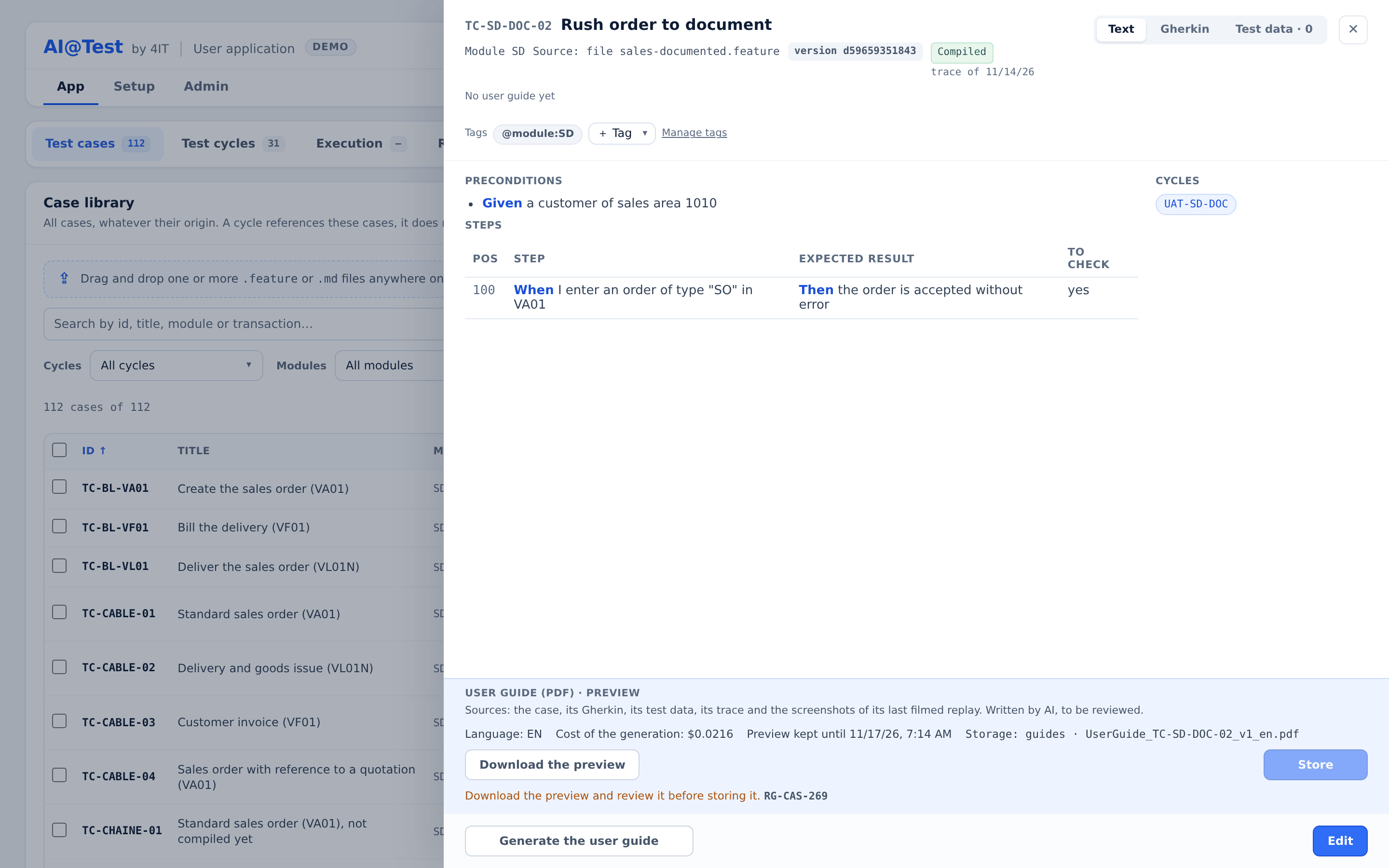
- Open the Details panel of a compiled case and click "Generate the user guide".
- Choose the "Language of the guide": "FR" or "EN".
- Optionally, tick "Add a chapter with functional explanations? This option adds an extra cost." For an SD case, this adds a chapter "3. Functional process" covering its process, its diagram and its consistency with the configuration. The dialog shows the maximum cost per generation.
- Click "Generate". The generation takes several minutes. You can close the panel while it continues.
- When it is ready, click "Download the preview" and review it. The preview is kept for three days.
- Click "Store" to keep it. Each stored guide is a new version and is never overwritten. Guides are named like
UserGuide_TC-OTC-01_v1_en.pdf.
The header of Details then shows a link for each language, such as "User guide v1 · EN · …", to download the last stored guide. When the case, its trace or its test data change, the link marks the guide as "outdated" and says why. Generate a new guide when you need it.
Admins and Testers generate and store guides. Every role, Auditor included, can download them. Only a compiled case can have a guide, because the guide comes from its trace, which must prove its current Gherkin. A generation counts towards the instance's LLM spending cap.
Archiving cases
A case cannot be deleted. Archiving takes it out of the library without losing anything.
- Select one or more cases in the library and click "Archive".
- The dialog "Archive N cases?" names, for each case, the cycles that reference it, or "In no cycle". It reminds you that "their Gherkin, traces, runs, defects and audit remain". A cycle that references an archived case keeps it, marked "archived". When that cycle runs, it sets the archived cases aside and names them.
- Confirm with "Archive N cases".
The notification offers "Go to Admin › Archive". There, the "Test cases" tab lists the archived cases. "Open" shows a case read-only, and "Restore" brings it back to the library. Admins and Testers can archive and restore cases; every role can read the Archive.