🚀 Overview
What is AI@CustomCode?
AI@CustomCode accelerates the custom code adaptation of SAP S/4HANA conversion and upgrade projects. An AI application analyses the ATC findings of the custom code, proposes and implements the ABAP corrections, and writes a report for every step. The ATC Review Workbench is where the project team reviews, comments on and signs off these reports, cycle by cycle.
The ABAP Test Cockpit (ATC) of a large ECC system often reports thousands of findings. Each one needs a developer to read the SAP note, understand the change, adapt the code and test it. AI@CustomCode does the reading and the first draft of the work, and keeps people in control of every change:
- the ATC findings are extracted from the system, together with SCMON usage data, so the work starts with code that really runs
- for each finding, the AI application reads the SAP note, proposes the adapted ABAP code and describes dependencies and functional impacts in an ATC Analysis report
- the Dev Lead and, for larger changes, the Functional Lead review and sign off each proposal in the workbench
- the AI application implements the approved changes in iterations and documents them in an ATC Implementation report
- the leads sign off the implementation, and the cycle is closed when every finding is approved
The workbench is a single HTML file: no server, no installation, and no data inside the app. It runs in Microsoft Edge or Google Chrome and reads all data from three project folders.
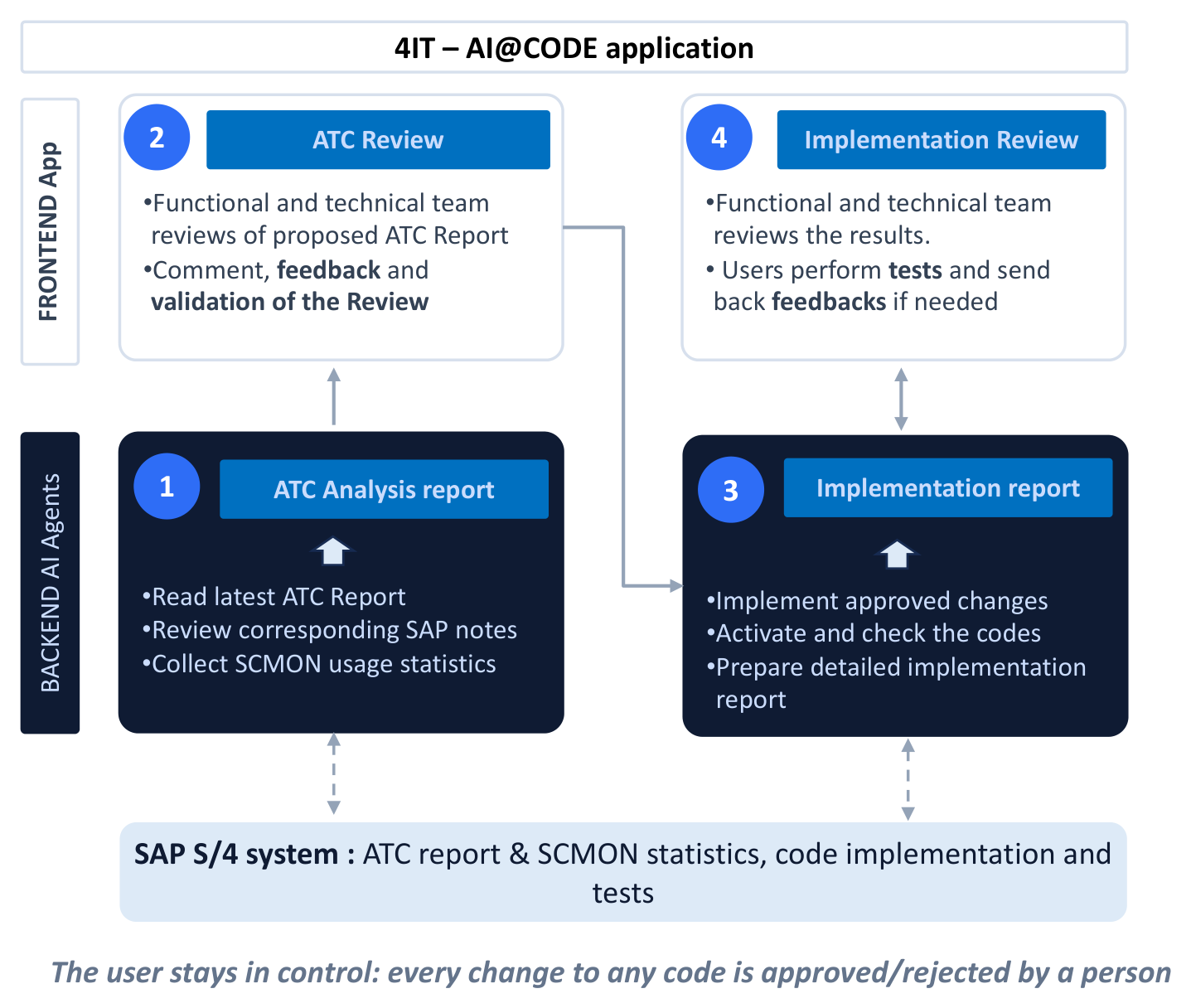
The picture below shows the four steps of the cycle and who does what. The backend AI agents (dark boxes) read the ATC report, the SAP notes and the SCMON statistics from the SAP S/4HANA system and write the ATC Analysis report (1). The functional and technical team reviews, comments on and validates it in the frontend app (2). The agents then implement only the approved changes, activate and check the code, and write the Implementation report (3), which the team reviews and tests in turn (4). Nothing reaches the code without a person's approval.
How It Works
Step 1 — Plan a Cycle
Work is split into cycles: a selection of findings handled together, for example priority 1 findings of the SD packages. Cycles are planned in Config › Cycles with an ID, name, scope, planned dates, owner and status. The AI application reads the same cycle list, so the reports carry the cycle ID and name from the plan.
Step 2 — ATC Analysis by the AI Application
For each finding of the cycle, the AI application writes an entry in the ATC Analysis report: the ATC check and message, object and include, the number of findings and the production calls (SCMON), the SAP note symptom and solution, the original and proposed ABAP code, dependencies, functional impacts and proposed functional actions. Each entry is classified by complexity (C1–C3) and priority, and gets an SAP module.
Step 3 — Review and Sign-off of the Analysis
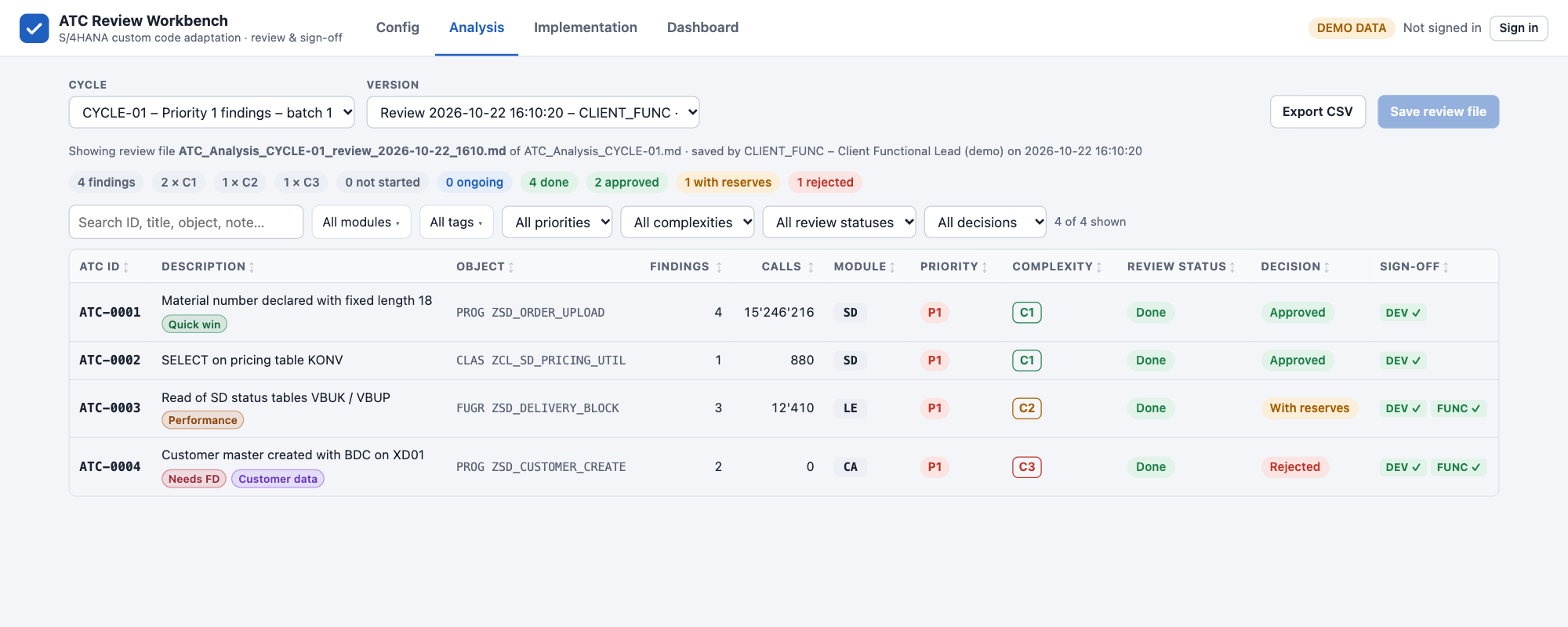
In the Analysis page, the leads go through the findings, decide Approved, With reserves or Rejected, add comments, and sign. They can also correct the module and add tags. Everything is saved in a review file next to the report; the report itself is never changed.
Step 4 — Implementation in Iterations
The AI application reads the latest review file and implements the approved changes. Each iteration produces an ATC Implementation report with the implementation status, description, issues and workarounds per finding. Rejected or reserved findings come back in the next iteration.
Step 5 — Sign-off and Closure
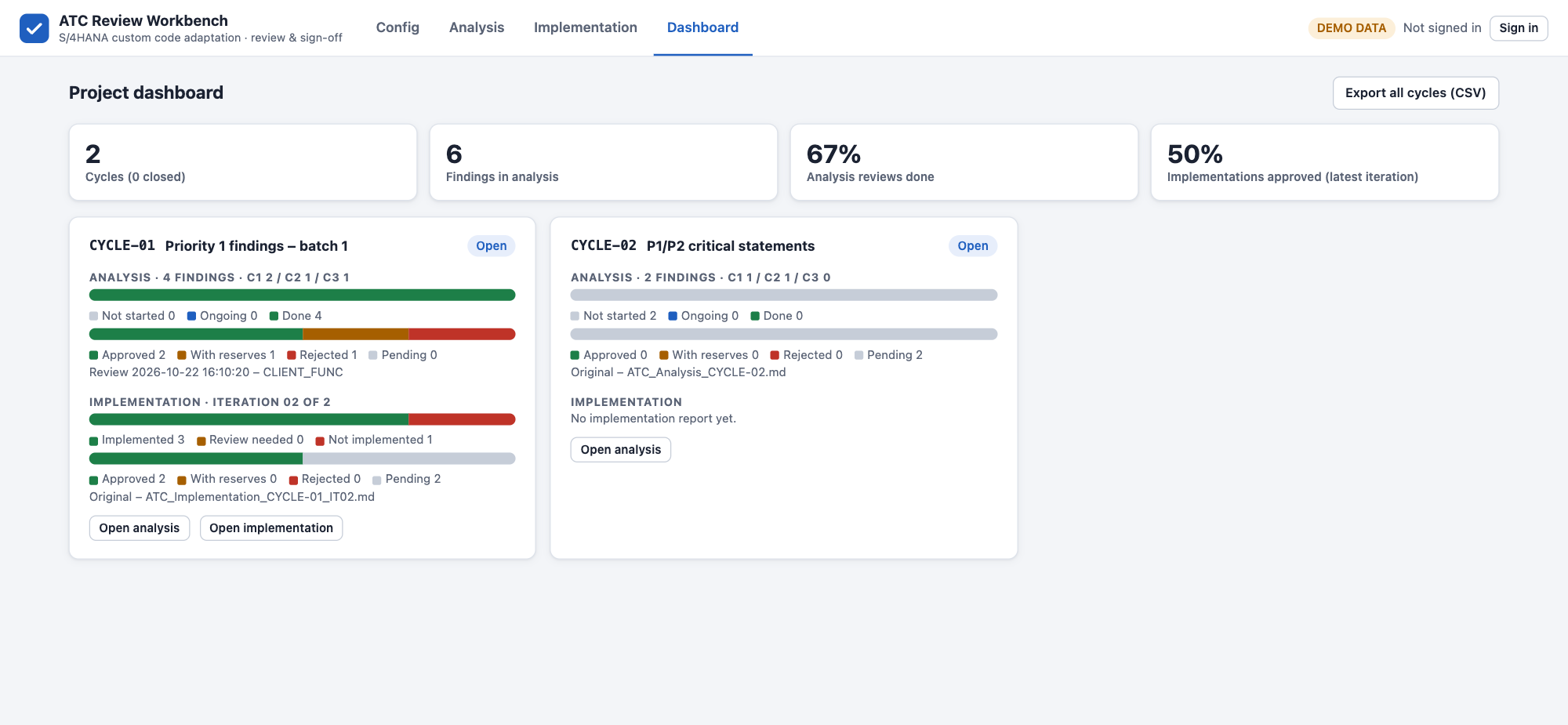
In the Implementation page, the leads sign off each implemented finding. From iteration 2, findings that were approved and have not changed keep their signatures, so only new or changed work is reviewed. When every finding is approved, Close cycle freezes the cycle. The Dashboard shows the progress of all cycles.
Architecture Overview
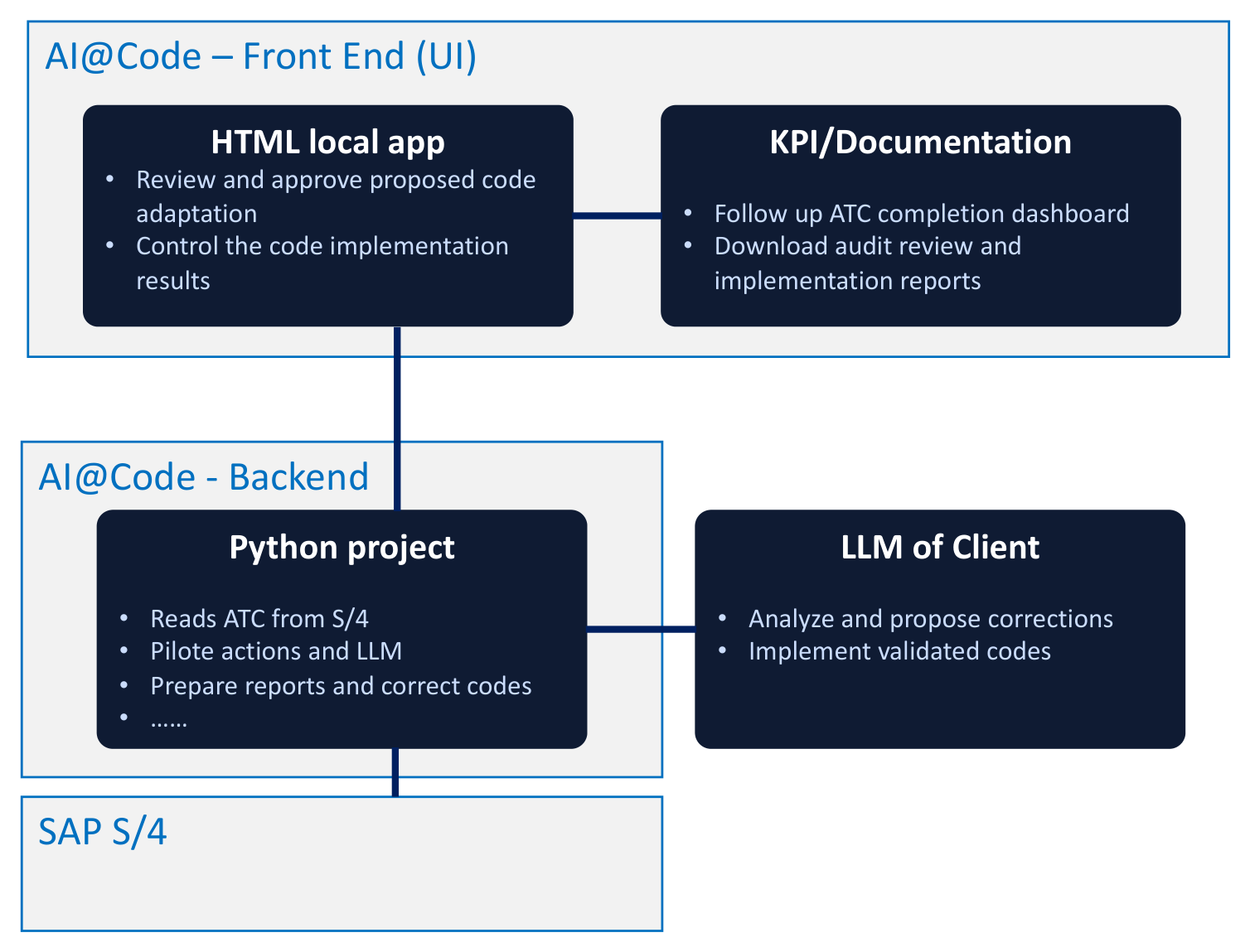
AI@CustomCode has two parts that only exchange report files:
- Front end — the ATC Review Workbench, a local HTML app, where the project team reviews and approves the proposed code adaptations and checks the implementation results. Its KPI and documentation functions follow the ATC completion on the dashboard and download the review and implementation reports for audit.
- Back end — a Python project that reads the ATC findings from SAP S/4HANA, pilots the actions and the LLM, prepares the reports and corrects the code. The LLM runs in the client's own environment: it analyses the findings, proposes the corrections and implements the validated code.
The front end has no connection to SAP or to the LLM: it only reads the reports and writes the review files described below.
Where the Data Lives
The HTML file contains no project or customer data. All data is read from three folders, typically in a SharePoint library synced with OneDrive:
| Folder | Content | Access |
|---|---|---|
| ATC Analysis reports | ATC_Analysis_<CYCLE>.md, written by the AI application | Read |
| ATC Implementation reports | ATC_Implementation_<CYCLE>_IT<nn>.md, one per iteration | Read |
| Review output | Review files, cycle closures and shared settings (_config subfolder) | Read and write |
Because review files and settings are saved in the shared Review output folder, everyone who opens the workbench on the same folders sees the same cycles, tags, modules, reviewers and sign-offs. File formats are described in Data Files (Admin).
Getting Started
1 — Open the File
Open ATC_Review_Workbench.html in Microsoft Edge or Google Chrome (double-click it or drag it into the browser window).
The workbench reads and writes folders with a browser feature that only Edge and Chrome provide. In Firefox and Safari, folders are read-only, and saved files are downloaded instead of written to the Review output folder.
2 — Select the Folders
On the Config page, section 1 · Report folders, click Change for the ATC Analysis reports, the ATC Implementation reports and the Review output folder, and allow the browser to access them. The browser remembers the folders; when you open the file again, click Reconnect folders if asked. Use ↻ Rescan folders after new reports are added.
3 — Sign In
In Config › 2 · Reviewer sign-in, choose your name, enter your PIN and click Sign in. You can browse every page without signing in; signing in is needed to sign off, change modules and tags, and maintain the shared settings.
Until a reviewer list is saved, the app uses four built-in demo reviewers. Replace them in Config › 6 · Reviewer administration before real use.
The Pages of the Workbench
| Page | What you do there |
|---|---|
| ⚙️ Config | Select the folders, sign in, maintain cycles, tags, modules and reviewers |
| 🔎 Analysis | Review the AI analysis of each finding, decide, comment and sign off |
| 🛠️ Implementation | Review each iteration of the implementation, sign off, close the cycle |
| 📊 Dashboard | Follow the progress of all cycles and export all decisions to CSV |
Who Uses It
| Role | Typical use |
|---|---|
| Dev Lead | Checks the proposed and implemented ABAP code, signs off every finding |
| Functional Lead | Reviews functional impacts and test proposals, signs off C2 and C3 findings |
| Developers | Read the analysis, the SAP note summary and the code change before testing |
| Project management | Plans cycles, follows the dashboard and uses the CSV export for status reporting |
Understanding the Key Concepts
ATC — ABAP Test Cockpit
ATC is SAP's static code analysis framework. In an S/4HANA conversion or upgrade, it is run with the S/4HANA readiness check variant to find custom code that uses removed tables, changed data types or simplified functions. Findings are classified by severity and refer to the SAP notes that describe the required change.
The challenge is scale: a system with years of custom development can produce tens of thousands of findings. AI@CustomCode handles the repetitive part — reading the note, locating the code, drafting the change — and leaves the decision to the project team.
SCMON — Usage Data
SCMON collects usage statistics over time. The longer it runs, the more representative the data. Activate it in the production system on the first day of the preparation phase.
SCMON records which custom programs, function modules and classes are executed in production, and how often. AI@CustomCode uses it to:
- focus on code that runs — findings on objects never called can be de-scoped or retired instead of adapted
- prioritise — the Calls column of the workbench shows the production calls of each object
- justify de-scoping decisions, with usage data as evidence
To activate it, open transaction SCMON in production, select the custom namespaces (Z*, Y*) and let it collect for at least 3–6 months to cover the business cycles.
4IT is evaluating a proactive Clean Core workstream as an extension of AI@CustomCode — covering compliance scoring, dead code cleanup and BAdI modernisation. See the Clean Core — Evolution Project page.