🏁 Getting Started
AI@Test by 4IT is an agent-driven functional testing product for SAP S/4HANA projects such as data migrations, reconfiguration and release upgrades. You describe each test case in plain business language. An AI agent learns the case by running it once in the real SAP system. After that, AI@Test replays it as often as you need, without AI.
This page explains how to sign in, what each role can do, and how to find your way around the screen.
How AI@Test works
- Describe the case in Gherkin. A test case is written with Given, When and Then steps. You import it from a
.featurefile (or a.mdfile that carries Gherkin), or you record it from SAP GUI. - Group cases in a Test cycle. A cycle is an ordered list of cases tied to a Connection, which is the precise SAP system the runs reach (host, instance, client and language).
- The first run compiles the case. The AI agent plays the case in SAP and records what it does as a trace (execute-and-record). The trace enters the catalogue only after it passes the bar: its form, the proof of each Then, then two replays without AI that must pass. A case recorded from SAP GUI and imported "already reproducible" skips the AI agent: its first execution validates the recorded trace without AI.
- Every later run is a replay. AI@Test replays the trace deterministically, without AI and with zero LLM tokens, so a replay is free and its verdict is stable. If the case's Gherkin or its connection changes, the case becomes stale and its next run compiles it again. If an SAP screen changes, "Recompile" asks the AI agent to redo the compilation.
- Results come with evidence. Each run keeps every step, its screenshot and the SAP status bar. A case that creates data must prove it with a database read, because a success message alone does not prove that the data was saved. The one exception is a cycle set to "Unverified proof". In such a cycle only the screen judges, and every run carries the "Unverified proof" mark.
- Defects are born from failures. A deviation reported by SAP opens a defect. The defect is tracked until it is retested on its original case and closed.
A compilation is played by the AI agent: it spends tokens and counts towards the instance's LLM spending cap. Replays cost nothing and are never refused.
Sign in
AI@Test signs you in with your organization's Microsoft account (Microsoft Entra ID). It asks for no AI@Test password and no AI@Test code.
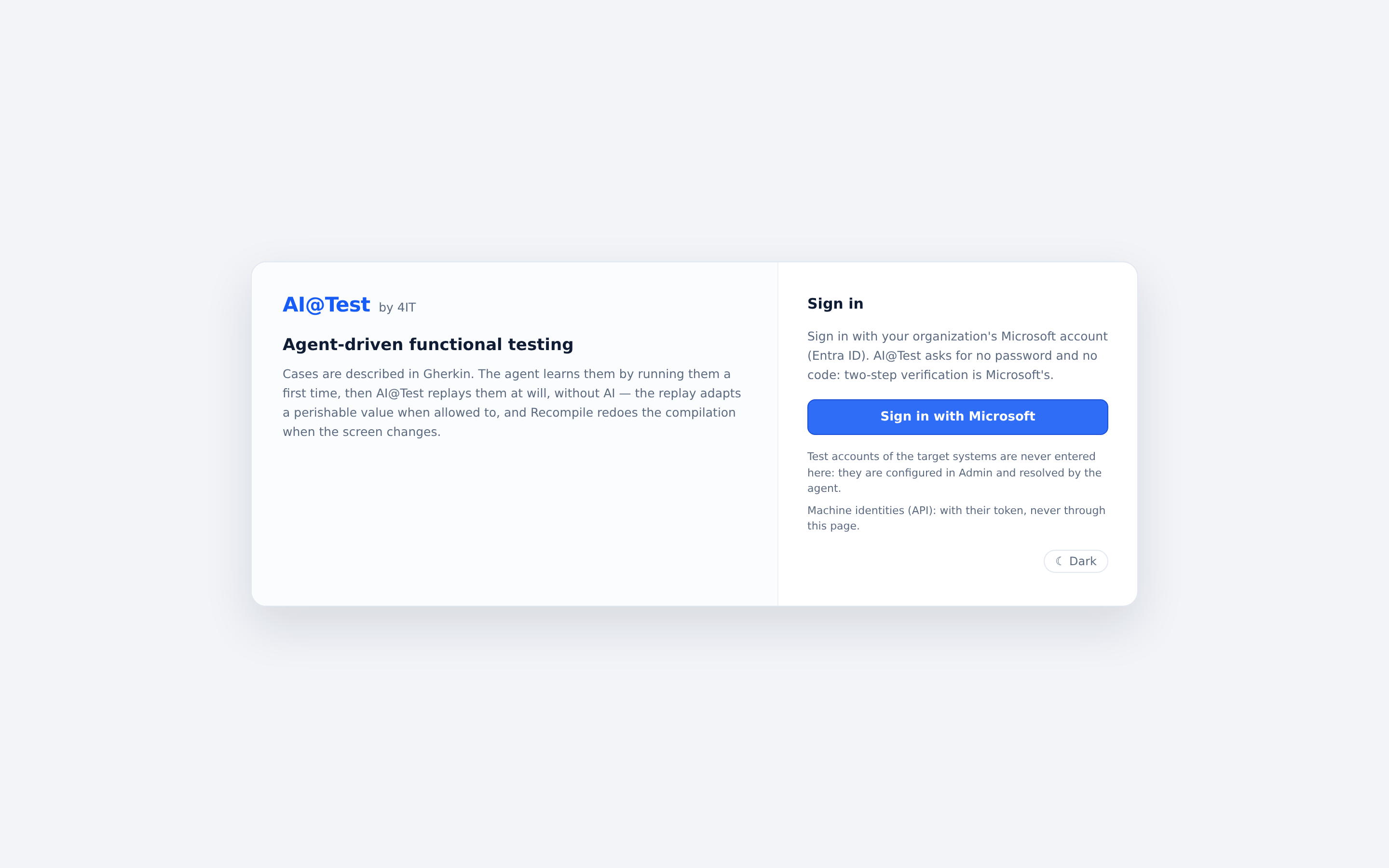
- Open the address of your AI@Test instance in your browser. The sign-in page appears in the language your browser prefers, French or English.
- Click "Sign in with Microsoft".
- Complete the Microsoft sign-in. Two-step verification, if your organization uses it, is handled by Microsoft.
- AI@Test opens on the screen of your role: Execution for an Admin or a Tester, Results for an Auditor.
If AI@Test does not know your account, the page says "Your Microsoft account has no access to AI@Test; ask an administrator for it." To try a different Microsoft account, use "Sign in with another account".
Access opens in two steps. First, an Admin declares you in Admin › Users with your Entra email, your name and your role. Then you are assigned to the AI@Test application in Entra (Enterprise applications › Users and groups). Until your first sign-in, Admin › Users shows you as "awaiting first sign-in". When your instance restricts email domains, only addresses from those domains get in.
NOTE — Test accounts are never entered at sign-in
The SAP accounts used for testing are separate from your personal sign-in. As the sign-in page says: "Test accounts of the target systems are never entered here: they are configured in Admin and resolved by the agent."
To leave, click "⎋ Sign out" in the header. When an Admin deactivates a user, that user loses access to AI@Test, including any open sessions.
Roles
Every user has one of three roles. An Admin sets the role in Admin › Users.
| Role | In one line | What the role is for |
|---|---|---|
| Admin | Connections, test accounts, users | Prepares the instance for the people who test: the connection to the SAP test system, the test accounts, the users and the recording stations. An Admin can also do everything a Tester can. |
| Tester | Import, execution, defects | Imports or records the cases, builds the cycles, runs them, reads the results and follows the defects. |
| Auditor | Read-only and export | Reads everything and writes nothing: results, what each run played, defects and the audit. Can export them. |
Permissions by role
The hub applies this matrix to every action. If your role lacks a permission, the action is refused, whatever the screen shows.
| Permission | Admin | Tester | Auditor |
|---|---|---|---|
| Manage cases & cycles | ✓ | ✓ | not granted |
| Run | ✓ | ✓ | not granted |
| Allow data adaptation | ✓ | ✓ | not granted |
| Manage defects | ✓ | ✓ | not granted |
| Configure connections | ✓ | not granted | not granted |
| Manage users | ✓ | not granted | not granted |
| View results | ✓ | ✓ | ✓ |
| Export the summary | ✓ | ✓ | ✓ |
"Manage cases & cycles" covers the following:
- importing cases and editing them in Details;
- creating, duplicating and composing cycles;
- tags, test data and Mapping;
- applying, accepting or rejecting Consistency check findings;
- archiving and restoring cycles and cases;
- generating and storing the user guide of a case;
- recording a case in SAP GUI, if your instance offers it.
The screen shows only the actions your role allows. When an action is refused, the message says whom to contact to get the permission: the support contact of your instance, or your administrator.
What an Admin does
- Declare the connection. In Admin › Connections, click "+ New connection". Choose the SAP GUI connector, then enter the host, instance, client and language of the test system. "Run the test" checks the connection one control at a time, and "Save connection" keeps it. A system classified as Production is refused.
- Create the test accounts. In Admin › Test accounts, click "+ New test account". Enter the SAP user the execution agent signs in with, and its secret. The secret is encrypted and never shown again. A shared account is the default account of its connection. A personal account, given to users with "Assign", takes precedence for their runs.
- Declare the users. In Admin › Users, click "+ New user" and enter the Entra email, the name and the role.
- Declare the recording stations. If your instance offers recording, declare them in Admin › Recording stations. A recording station is where people record cases from SAP GUI under their own SAP account.
- Watch the platform. The Platform card shows the state of each execution agent and of the lane. The Instance LLM spending card shows the spending of the day and of the month against their caps. The Audit keeps every action and can be filtered and exported.
- Archive and restore. An archived cycle or case leaves the lists without losing anything. Admin › Archive keeps it, read-only, and "Restore" brings it back.
Spending caps, execution agents and the support contact are set when the instance is deployed, not from the screen. To change one, write to support.
What a Tester does
A test round follows the order of the App sub-tabs:
- Import the cases in Test cases with "+ Import cases", or record them with "Record in SAP GUI".
- Build a cycle in Test cycles: click "+ New cycle" (a name and the connection its cases will run on), then "+ Add cases".
- Run in Execution with "▷ Run case" or "▷ Run cycle". Before you click, the screen tells you whether the run will compile or replay. Only one run at a time drives SAP; the others wait in the queue.
- Read the result. The log updates live, and a double click on a case opens its last run. Results keeps every test execution, and "vs previous" shows the regressions.
- Handle a failure. A deviation reported by SAP opens a defect, and "Create defect for this run" opens one by hand. In Defects, "Retest" reruns the original case. Once the case passes, "Close" closes the defect. A defect never closes on its own.
- Schedule. A cycle can replay every night, every week or after a transport. Scheduled runs only replay and never use AI. A case that is to compile or stale is left out of a scheduled run, with its reason.
What an Auditor does
- Reads the test executions in Results, from the most recent to the oldest. Opens a run to read each step, its screenshot and the SAP status bar.
- Follows the cycles and the cases, and reads the Gherkin of each case.
- Reads the defects. Each defect shows the run it was born from and the exact SAP finding.
- Exports: "Export the test execution" in XLSX or PDF from Results or from the detail of a run, and "Export CSV" in Defects and in the Audit.
- Reads Admin › Audit, which records every action, who did it and when.
The header
The header stays at the top of every screen.
| Element | What it shows or does |
|---|---|
| AI@Test by 4IT · User application | The product name. An environment badge can follow it with the environment's name in capitals, so you never confuse two instances. Its tooltip spells the environment out, for example "Demo environment." |
| Health pill ("MCP SAP GUI") | The state of the SAP GUI connector: online, offline or not probed. Hover over it for details. |
| Help | Opens the in-app help: role guides, writing an importable case, the glossary and the support contact. |
| Language switch | "FR · Français" on the English screen, "EN · English" on the French screen. |
| Theme | "☾ Dark" switches to the dark theme, "☀ Light" switches back to the light theme. |
| ⎋ Sign out | Closes your session. |
| Tabs | "App", "Setup" and "Admin". Every role sees all three tabs; what each tab offers depends on your role. |
| Identity | "Logged in:" followed by your name and your role, for example "Logged in: your name · Tester". |
Language: French or English
Each user has an interface language, French or English, and every screen is shown in that language. Click "FR · Français" or "EN · English" to switch. The screen you are on stays open with its filters and what you typed; only the language changes. The choice applies to you alone and is kept for your next session. A newly declared user starts in French. Your data, such as case titles, Gherkin and SAP messages, is not translated.
Light and dark theme
Click "☾ Dark" or "☀ Light" to switch. Until you choose, AI@Test follows the theme of your operating system. Your choice is remembered in this browser only.
Health pills
The health pill tells whether the execution agents that drive SAP GUI respond:
- online: every agent responds. The tooltip gives the time of the last reading.
- offline: the pill turns red, and its tooltip names the connection whose agent does not respond.
- not probed: the health probe has no recent reading, so the badge says nothing about the service status.
Report infrastructure failures, frozen cycles, offline agents and a hub that does not respond to support. They are not defects. A cycle frozen on an INFRA verdict charges nothing to the cases.
The tabs: App, Setup and Admin
- App is where the daily work happens, in six sub-tabs.
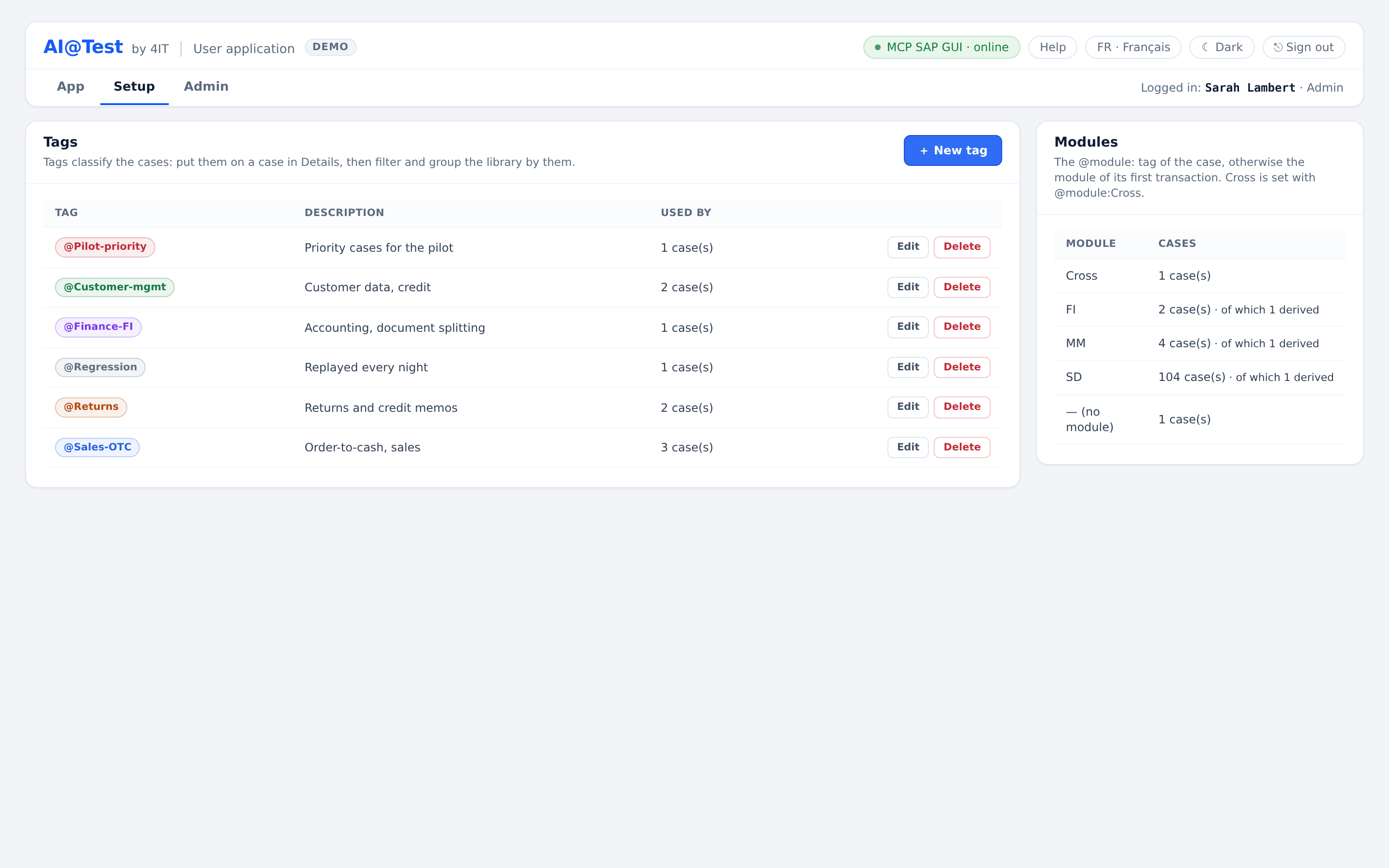
- Setup holds the tags and the modules that classify the cases. All three roles can read it. Admins and Testers create, edit and delete tags.
- Admin shows an Admin these views: Connections, Test accounts, Recording stations (when your instance offers recording), Users, Archive and Audit. A Tester or an Auditor sees only Archive and Audit.
The App sub-tabs
Each sub-tab carries a small counter.
| Sub-tab | Counter | What you do there |
|---|---|---|
| Test cases | Number of cases | The case library: import, record, search, open Details, archive. |
| Test cycles | Number of cycles (archived cycles excluded) | Build cycles with "+ New cycle" and "+ Add cases", tick the data rows each case plays, and link cases with a Mapping. |
| Execution | The current cycle | Run with "▷ Run case" or "▷ Run cycle", and follow the live log and the queue. |
| Results | Number of test executions | Every test execution with its runs, "vs previous", and the exports. |
| Defects | Number of open defects | Requalify a defect, "Retest", "Close" or "Reopen" it, and "Export CSV". |
| Schedule | on or off | Planned replays: every night, every week or after a transport. |
Help
The "Help" link appears in the header for every role. It opens the in-app help on your role's guide, marked "your role". You can also read the guides of the other roles.
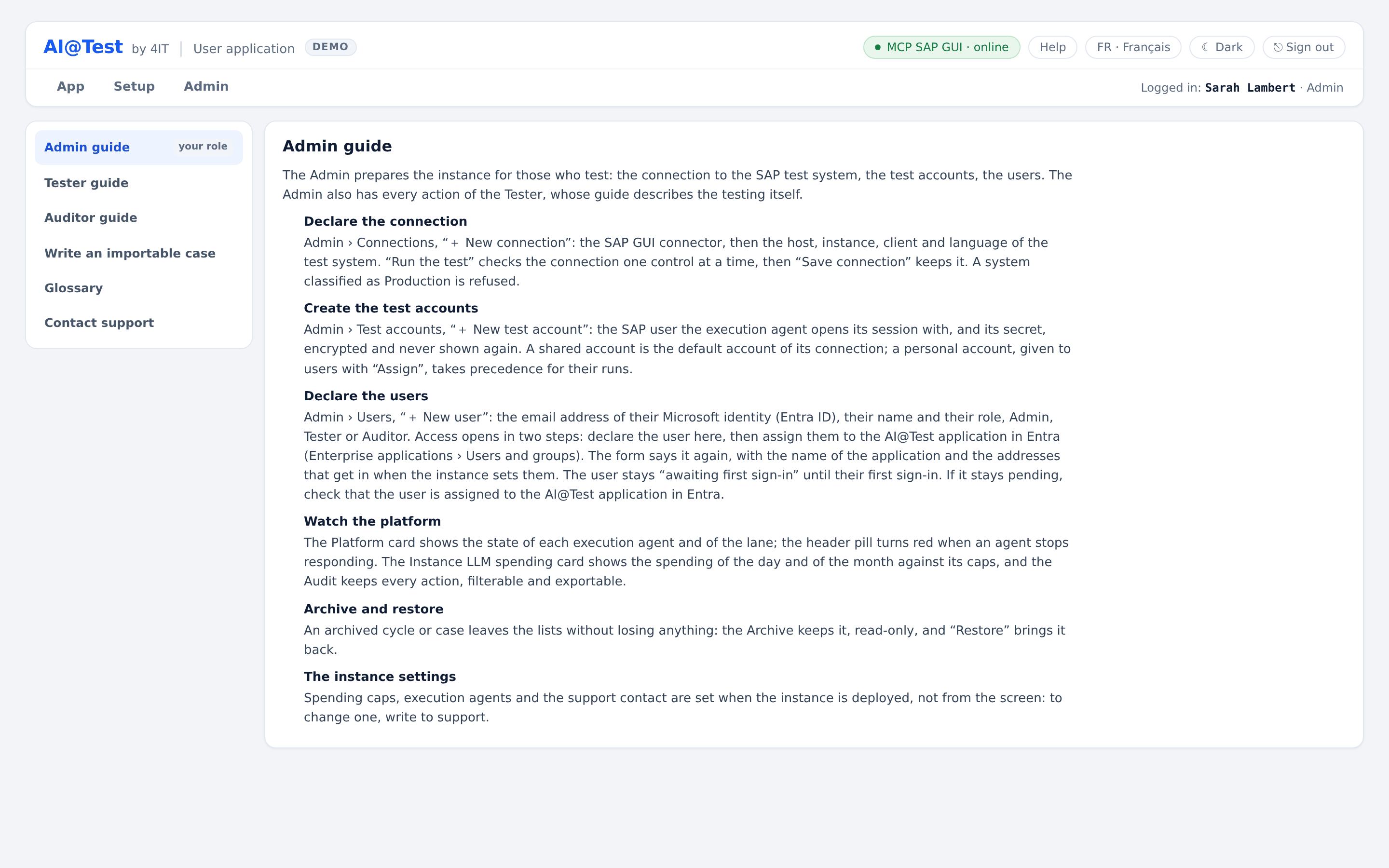
The help has six topics:
| Topic | What it contains |
|---|---|
| Admin guide | Preparing the instance: connection, test accounts, users, platform, archive. |
| Tester guide | A test round, from importing cases to scheduling. |
| Auditor guide | Reading results, knowing what a result proves, exporting. |
| Write an importable case | What the import accepts and refuses, with an example file. |
| Glossary | The words of the screen, one sentence each. |
| Contact support | The support contact of your instance and what to tell it. |
To get help quickly, tell support:
- what you were doing, and the screen you were on;
- the case, cycle and test execution involved, by their identifiers (TC-…, EX-…);
- the message shown, word for word, with the rule it cites;
- the "Reference" of a failure, when its message shows one: "Copy the reference" copies it;
- the time, to within a few minutes.
Key words
| Term | Meaning |
|---|---|
| Test case | What a test checks, written in Gherkin: a title, preconditions and Given, When, Then steps. |
| Test cycle | An ordered list of cases, tied to a connection, that are run together. |
| Test execution | The dated launch of a cycle, numbered EX-…, which freezes its connection and cases and groups their runs. |
| Test run | A case played in a test execution, with its verdict, its log and its screenshots. |
| Connection | The precise SAP system the runs reach: host, instance, client and language. |
| Test account | The SAP account the execution agent signs in with. Its secret is never shown again. |
| Execution agent | The Windows machine that drives SAP GUI for the runs, one session at a time. |
| Trace | The sequence of SAP actions a compiled case replays, without AI. |
| Compilation | The first run of a case, played by the AI agent, which writes its trace. |
| Replay | A run that replays the trace of a compiled case, without AI or tokens. |
| Bar | The checks a trace passes before it enters the catalogue: its form, the proof of each Then, then two replays without AI. |
| Stale | A case whose trace no longer holds because its Gherkin or its connection changed. Its next run recompiles it. |
| Lane | The right to drive the SAP session: one run at a time, the others wait in the queue. |
| Defect | A deviation SAP reported during a run, tracked until it is closed and retested on its original case. |