⚙️ AI@CustomCode Config
The Config page holds everything the other pages depend on: where the reports are, who you are, and the shared lists (cycles, tags, SAP modules, reviewers).
Sections 3 to 6 are collapsed when the app starts; click a title to open it. Their settings are shared: they are saved in the _config subfolder of the Review output folder, so every user of the same folder sees them, and they are kept when a new version of the HTML file is deployed. To change them, you must be signed in.
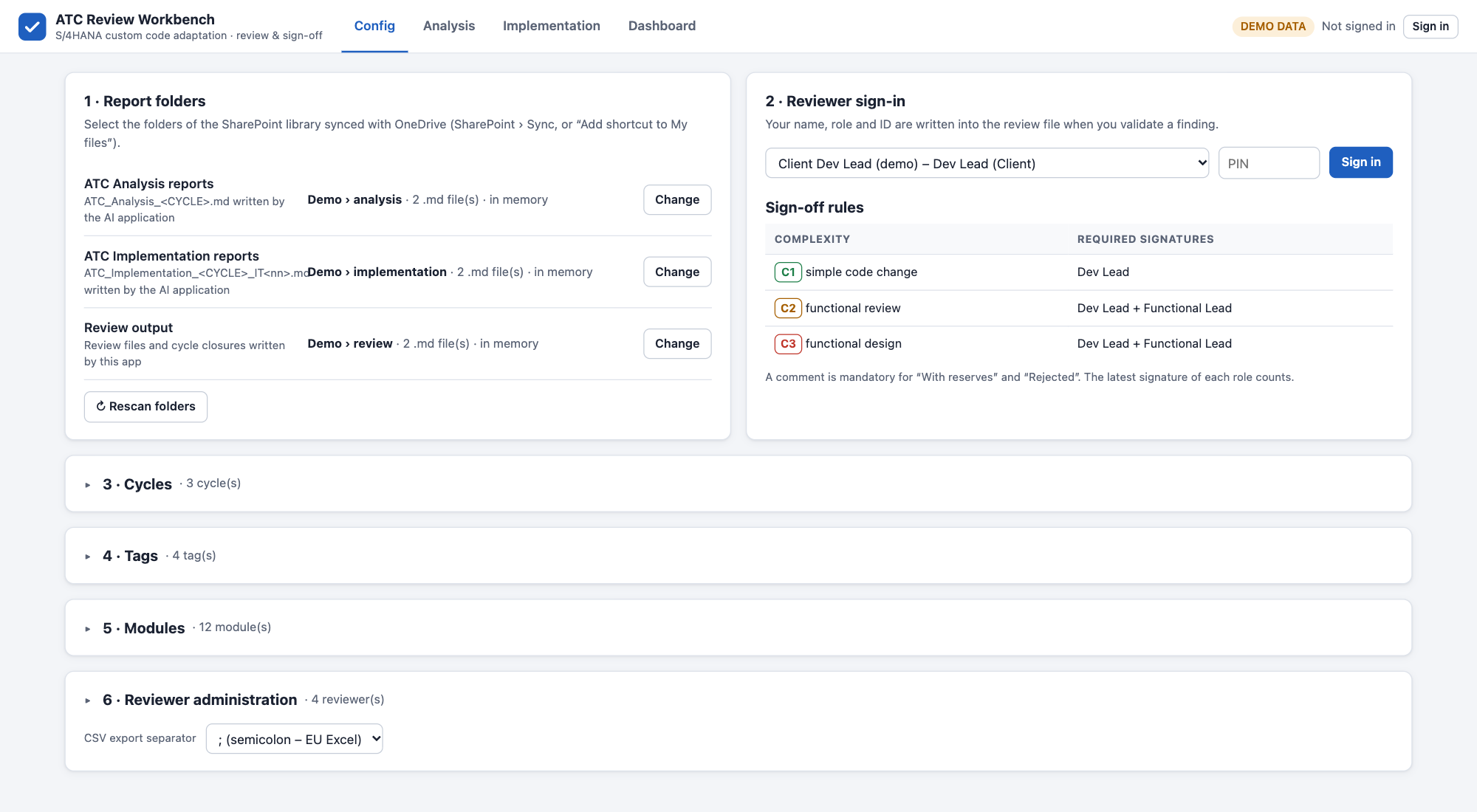
1 · Report folders
Select the three folders the app reads from:
| Folder | Content |
|---|---|
| ATC Analysis reports | ATC_Analysis_<CYCLE>.md, written by the AI application |
| ATC Implementation reports | ATC_Implementation_<CYCLE>_IT<nn>.md, one per iteration |
| Review output | Review files and cycle closures written by the workbench, and the _config subfolder |
| Button | Effect |
|---|---|
| Select folder / Change | Pick a folder |
| Reconnect folders | Shown when the browser needs your permission again for the remembered folders |
| ↻ Rescan folders | Read the folders again, e.g. after a new report was added |
In SharePoint, open the project library and click Sync (or Add shortcut to My files). The folders then appear in File Explorer or Finder under OneDrive, and you can select them here.
2 · Reviewer sign-in and sign-off rules
Choose your name, enter your PIN and click Sign in. Your name, role and user ID are written into the review file when you sign a finding.
Sign-off rules
The required signatures depend on the complexity the AI application gives each finding:
| Complexity | Meaning | Required signatures |
|---|---|---|
| C1 | Simple code change | Dev Lead |
| C2 | Medium or complex code change, functional review required | Dev Lead + Functional Lead |
| C3 | Complex use case, functional design required | Dev Lead + Functional Lead |
- Each role chooses a decision: Approved, With reserves or Rejected.
- A comment is mandatory for With reserves and Rejected.
- The latest signature of each role counts.
See Analysis › Review and sign-off for how to sign.
3 · Cycles
The list of cycles of the project. Plan a cycle here before the AI application generates its reports, and keep it up to date.
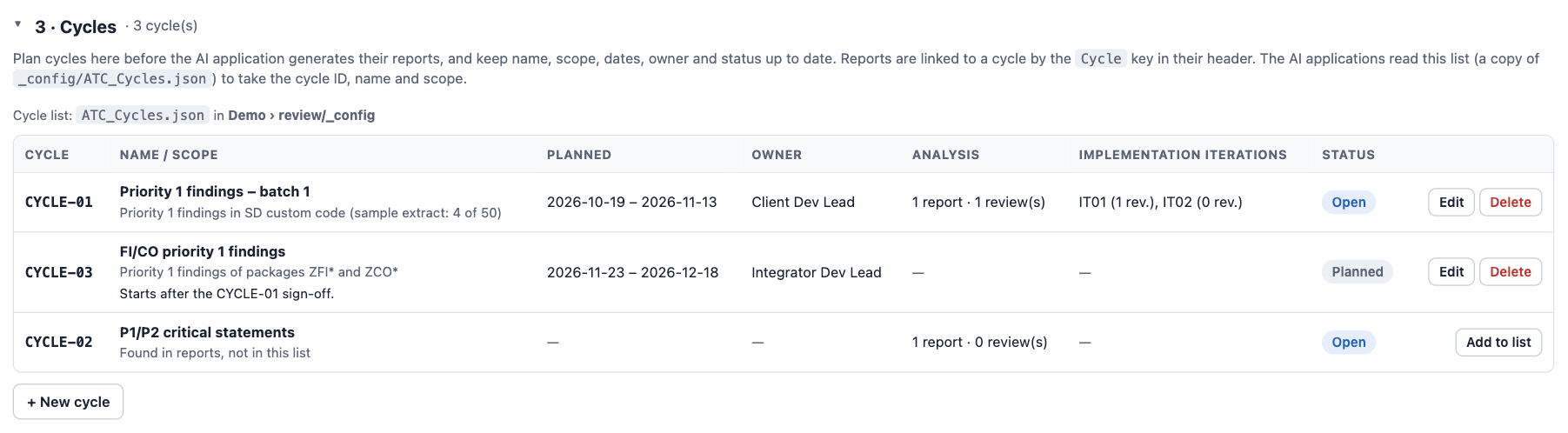
| Field | Description | Example |
|---|---|---|
| Cycle ID | Letters, digits, - and _, up to 20 characters | CYCLE-03 |
| Name | Short name shown in the lists and on the Dashboard | FI/CO priority 1 findings |
| Scope | Selection rule of the findings | Priority 1 findings of packages ZFI* |
| Planned start / end | Dates; the end cannot be before the start | 2026-11-23 – 2026-12-18 |
| Owner | Free text | Integrator Dev Lead |
| Status | Planned, Open or Closed | Planned |
| Comment | Free text |
How it works:
- Reports are linked to a cycle by the
Cyclekey in their header (- Cycle: CYCLE-01), not by the file name. - + New cycle proposes the next free
CYCLE-nnID. Once reports exist for a cycle, its ID is locked; everything else can still be edited. - A cycle found in the reports but missing from the list is shown as Found in reports, not in this list with an Add to list button.
- The name and status of the list win over the values in the reports.
- Closed disables signing for the cycle. Close cycle on the Implementation page sets the status to Closed automatically; you can also set it by hand. Reopening a cycle that has a closure file asks for confirmation.
- Removing a cycle from the list never touches its reports.
The list is saved as _config/ATC_Cycles.json. The AI application reads a copy of it to take the cycle ID, name and scope, and stops if a cycle is missing or Closed. After you add or change a cycle, copy the file to the AI application's project, the same way the reports are copied.
4 · Tags
Free labels you can attach to findings, e.g. Quick win, Performance, Needs FD, Customer data.
- Each tag has a name, an optional description and a colour.
- Tags are assigned in the detail view of the Analysis and Implementation pages and can be used as filters in both lists.
- Deleting or renaming a tag does not change review files already saved: findings there keep the old name, shown with a dashed border, until someone tags them again.
5 · Modules
The SAP modules a finding can belong to. The list starts with 12 standard codes: FI, CO, SD, MM, PP, QM, PM, PS, LE, HCM, CA, BC.
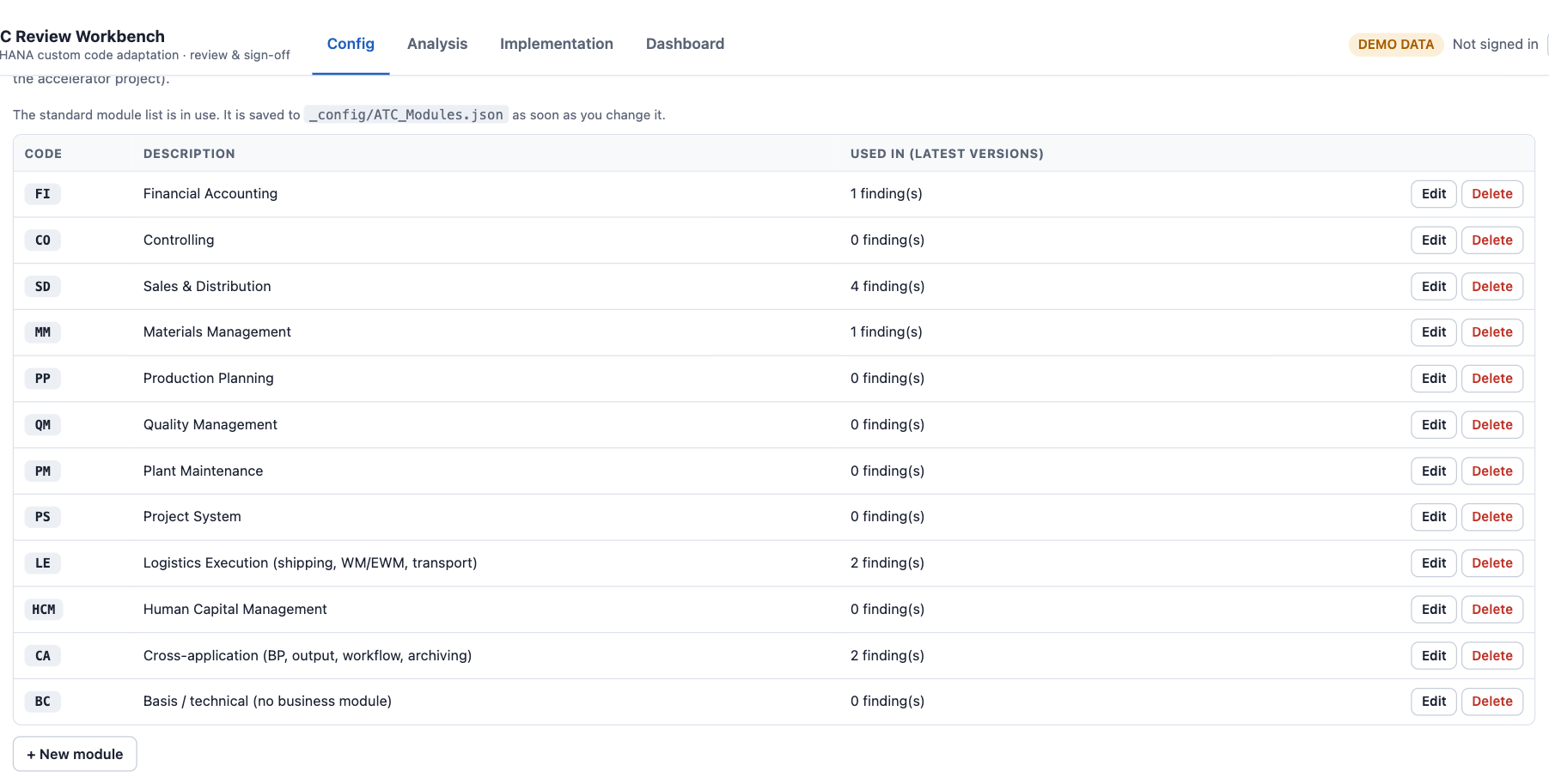
- Add project-specific codes such as
RE-FXwith + New module; Add missing standard modules restores the standard codes. - A code found in the reports but missing from the list is shown with Add to list.
- The AI application uses the same codes when it classifies a finding. When you add a code here, add it to the AI application's module list too.
6 · Reviewer administration
Click Edit reviewer list to maintain who can sign in.
| Field | Description |
|---|---|
| User ID | Short ID, e.g. JDUPONT |
| Name | Display name |
| Organisation | Client or Integrator |
| Role | Dev Lead or Functional Lead |
| PIN | At least 4 characters |
Add, remove or reset the PIN of a reviewer, then click Save reviewer list. The list is saved as _config/ATC_Reviewers.json in the Review output folder and shared with everyone; the previous version is kept as _config/ATC_Reviewers_previous.json. If someone else saved the list while you were editing it, the app warns you before replacing it.
The reviewer file is encoded and PINs are stored only as salted hashes. This prevents casual reading, but it is not an audit-grade signature. To limit who can change reviewers, give only the project admins edit rights on the _config folder in SharePoint; everyone else needs read access to sign in.
Until a reviewer list is saved, the app uses four built-in demo reviewers (Client and Integrator, Dev Lead and Functional Lead). Save the real project reviewers before you start signing off.
Other settings
| Setting | Description |
|---|---|
| CSV export separator | ; (semicolon – EU Excel) or , (comma – US Excel), used by every Export CSV button. Saved in your browser only. |