🛠️ AI@Flows Implementation
The Implementation page shows how far each interface has been adapted in each target S/4HANA system. It reads the implementation reports from the Interface Implementation reports folder: one report per system and cycle (implementation wave). The cycle ID comes from the report written by the AI application.
It has three views:
| View | Content |
|---|---|
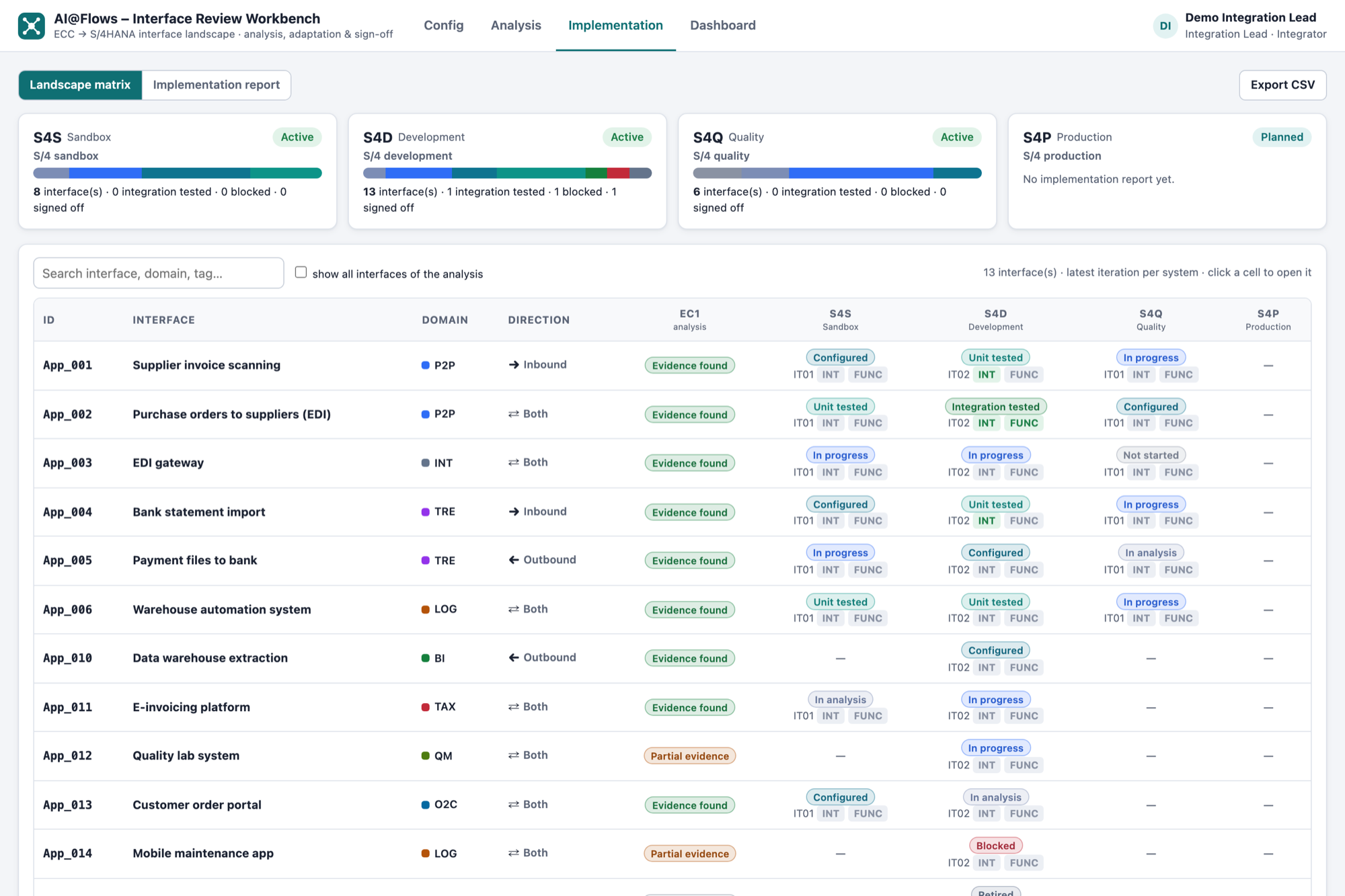
| Landscape matrix | All interfaces × all target systems, latest cycle per system |
| Implementation report | One report, selected by System and Cycle |
| Review comments | All review comments on the implementation of the selected system and cycle (see Review comments) |
Implementation statuses
| Status | Meaning |
|---|---|
| Not started | No work done yet |
| In analysis | Target design being defined |
| In progress | Being built or configured |
| Configured | Configuration complete |
| Unit tested | Unit tests done |
| Integration tested | System integration tests done |
| Ready for cutover | Ready to go live |
| Blocked | Waiting on an issue |
| Retired | Will not be migrated |
Landscape matrix
At the top, one card per target system shows its tier, status, a status bar of its interfaces and the number of interfaces integration tested, blocked and signed off.
The matrix below has one row per interface and one column per system:
- The first status column is the analysis of the source system (evidence found / partial / not found). Click it to open the interface on the Analysis page.
- Each system column shows the interface's status in the latest cycle for that system, the cycle ID (e.g.
CYCLE-02) and two sign-off badges, INT and FUNC, highlighted when the Integration Lead or Functional Lead has signed. - Click a cell to open the interface in that system's report.
Use the search field to filter by interface, domain or tag. Tick show all interfaces of the analysis to include interfaces not yet in any report.
Implementation report
Choose the System and the Cycle (the newest is marked latest). If the folder holds several versions of the report for the same system and cycle, the newest one is used and the toolbar says how many earlier versions were ignored. The KPIs show the system and client, the number of interfaces in the cycle with a status bar, tests passed and failed, open issues, and how many interfaces are signed off by both roles.
The list shows for each interface: Status, Owner, Flows done, Configuration (items OK / changed / missing), ATC open P1/P2/P3, Tests, Open issues, Changed (whether it changed since the previous cycle), Sign-off, and 💬 n when it has review comments.
Reports flagged as demo files show a Demo report banner.
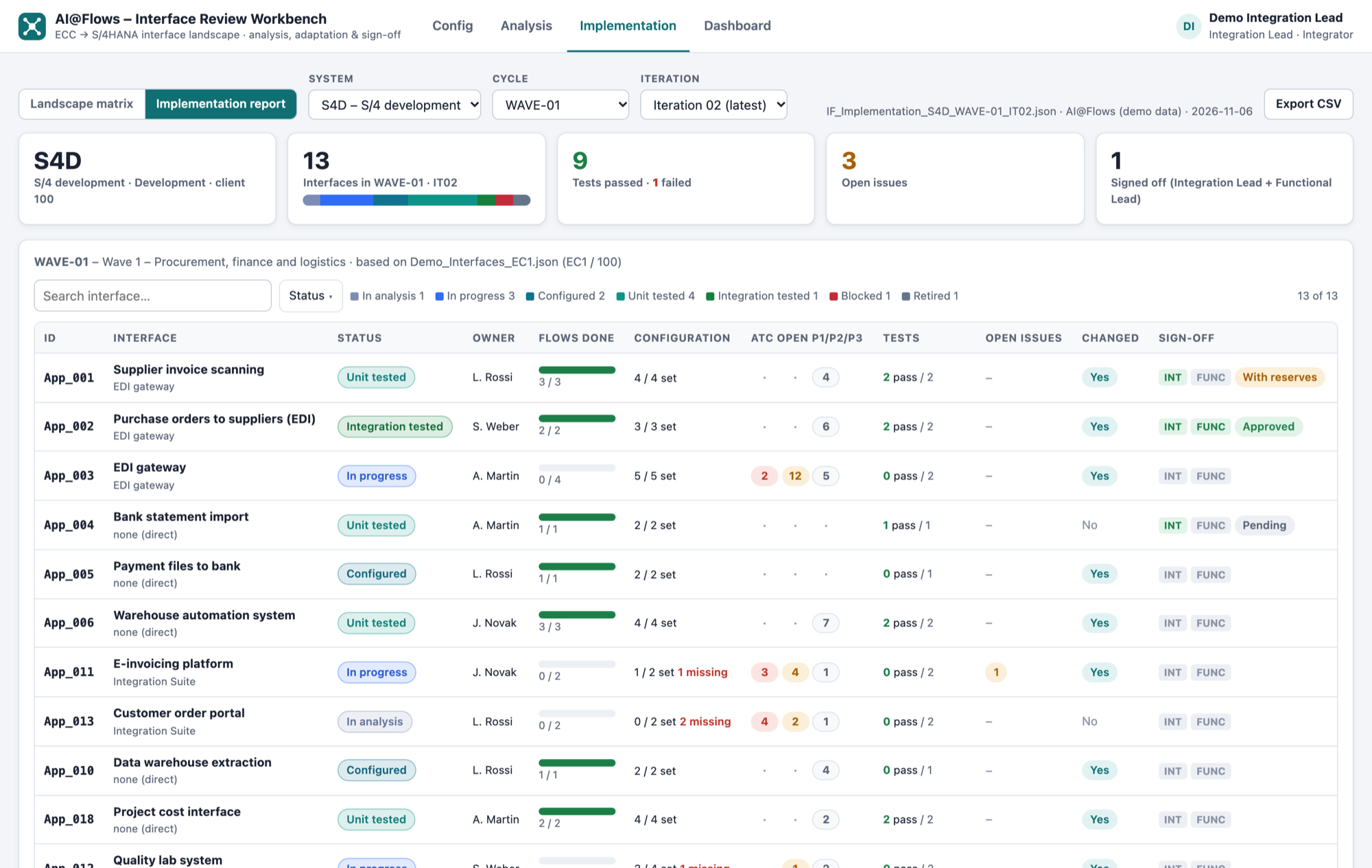
Export CSV downloads the report list with flows done, configuration missing, ATC open per priority, tests passed and failed, and open issues.
Interface detail
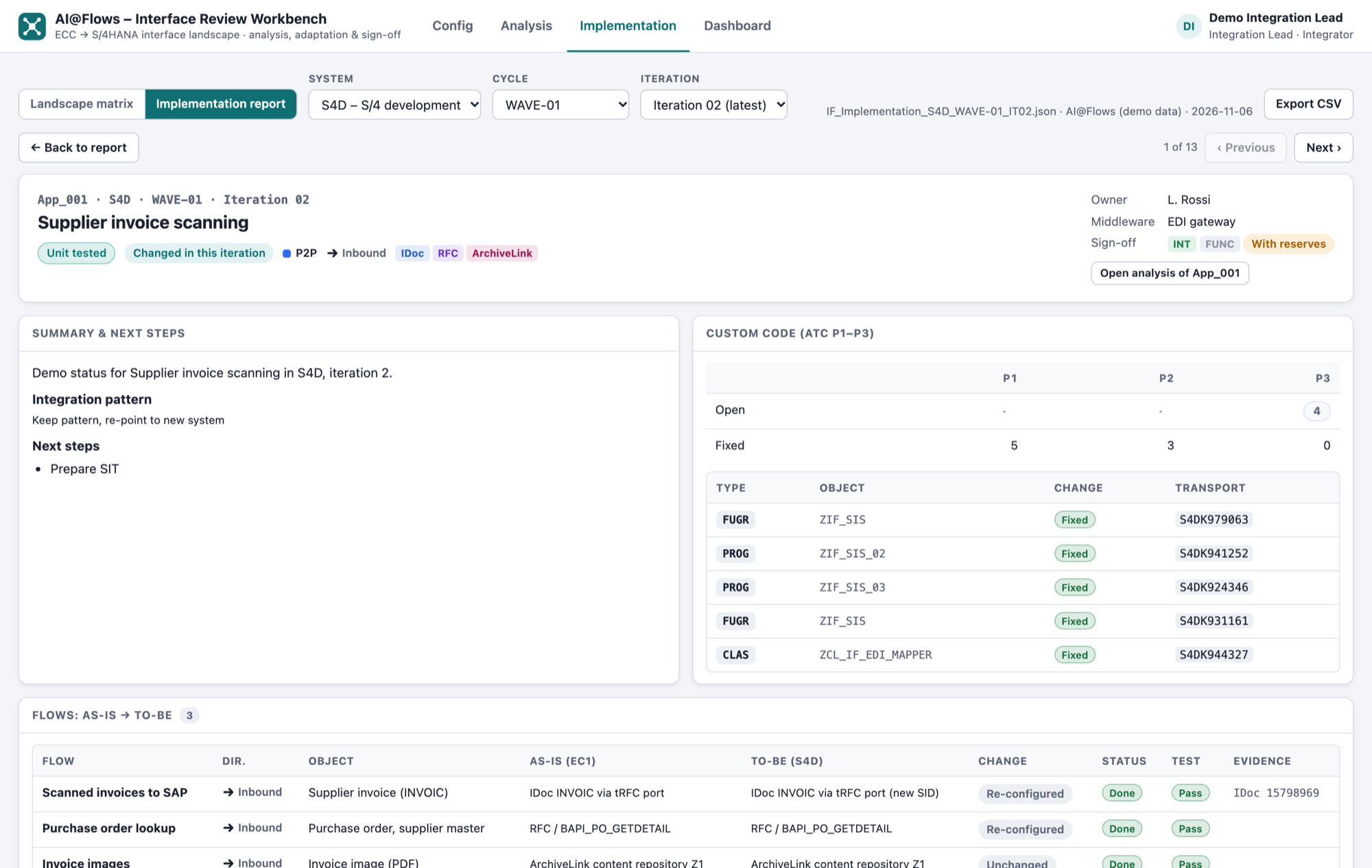
Click an interface to open it. Use ← Back to report, ‹ Previous and Next › to navigate. The header shows the owner, middleware, sign-off state and whether the interface changed since the previous cycle. 💬 Review comment jumps to the review comments of the interface.
| Section | Content |
|---|---|
| Summary & next steps | Integration pattern (to-be), status summary, next steps |
| Custom code (ATC P1–P3) | Open and fixed findings per priority, and the custom objects with their change status (Open · In progress · Fixed) and transport |
| Flows: as-is → to-be | Per flow: direction, business object, technology in the source (as-is) and in the target (to-be), type of change (Unchanged · Re-configured · Re-built · Replaced · Retired), status, test result and evidence |
| Configuration trace across SAP instances | See below |
| Tests | Scenario, type (Unit · SIT · E2E · Volume), result, date and evidence |
| Transports | Transport ID, description, type, owner and status (Modifiable · Released · Imported <SID>) |
| Issues | Issue text, severity (High · Medium · Low), owner and status |
| Sign-off | Decision form and sign-off log |
| Review comments | Comments on the implementation of this interface (see below) |
Configuration trace across SAP instances
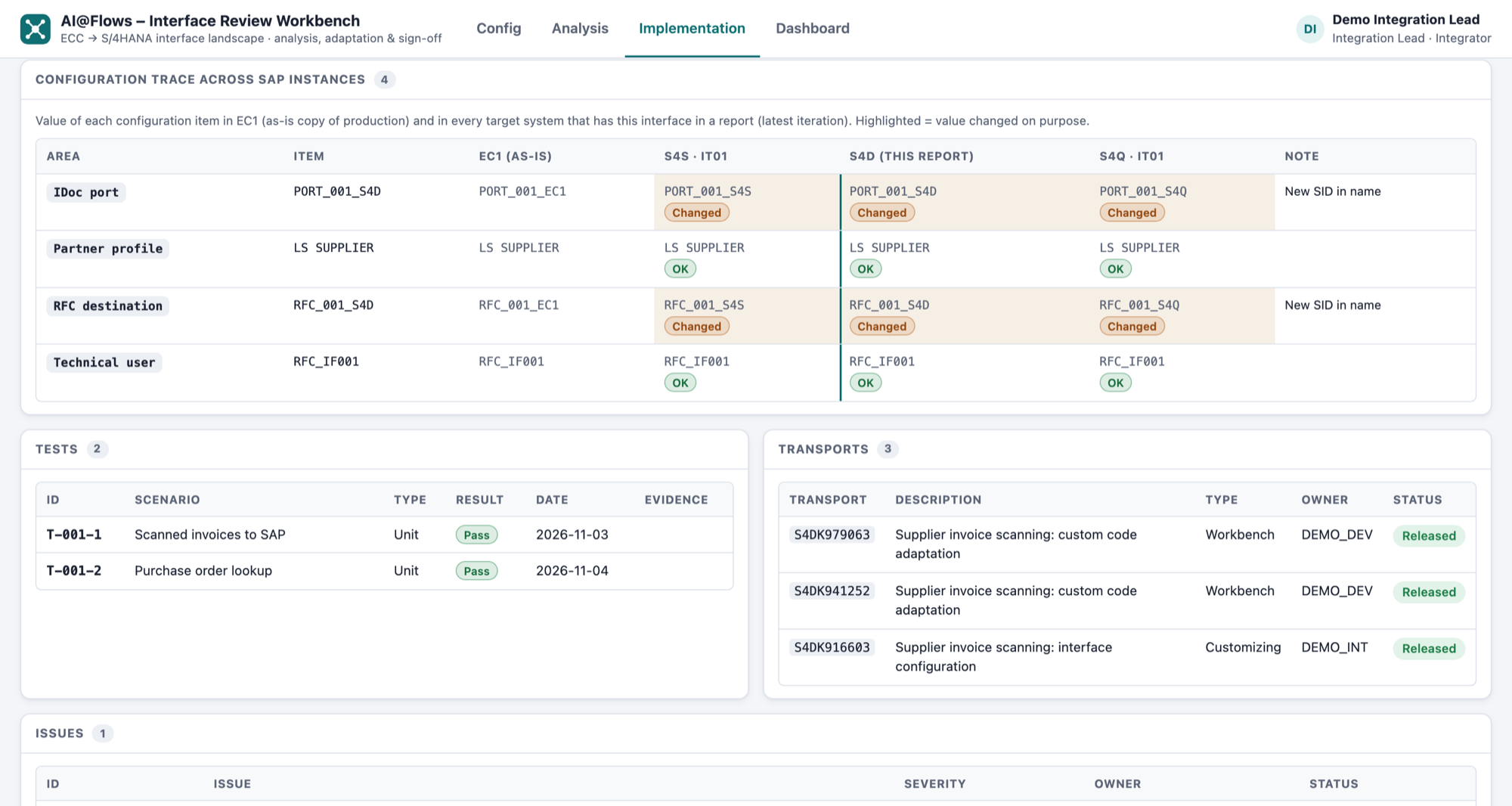
For every configuration item of the interface (RFC destination, IDoc port, partner profile, logical path, HTTP destination, web service, batch job, technical user, output type, …), the trace shows side by side:
- the value in the analysed source system, and
- the value in each target system that has a report for this interface,
with its status (OK · Changed · Missing · Not needed) and a note.
Items are matched across systems by area and name, ignoring the SID in the name, so MW_GATEWAY_S4D in the Development report and MW_GATEWAY_S4Q in the Quality report are shown as the same item. This makes it easy to spot a destination that was configured in Development but is still missing in Quality.
Sign-off
Each interface in each target system must be signed off per cycle by both roles: the Integration Lead and the Functional Lead.
To sign:
- Sign in on the Config page.
- Open the interface in the report of the system and cycle.
- Under Sign-off, choose a Decision: Approved, With reserves or Rejected.
- Enter a Comment. It is mandatory unless the decision is Approved.
- Click Validate & sign. The form shows the role you are signing as.
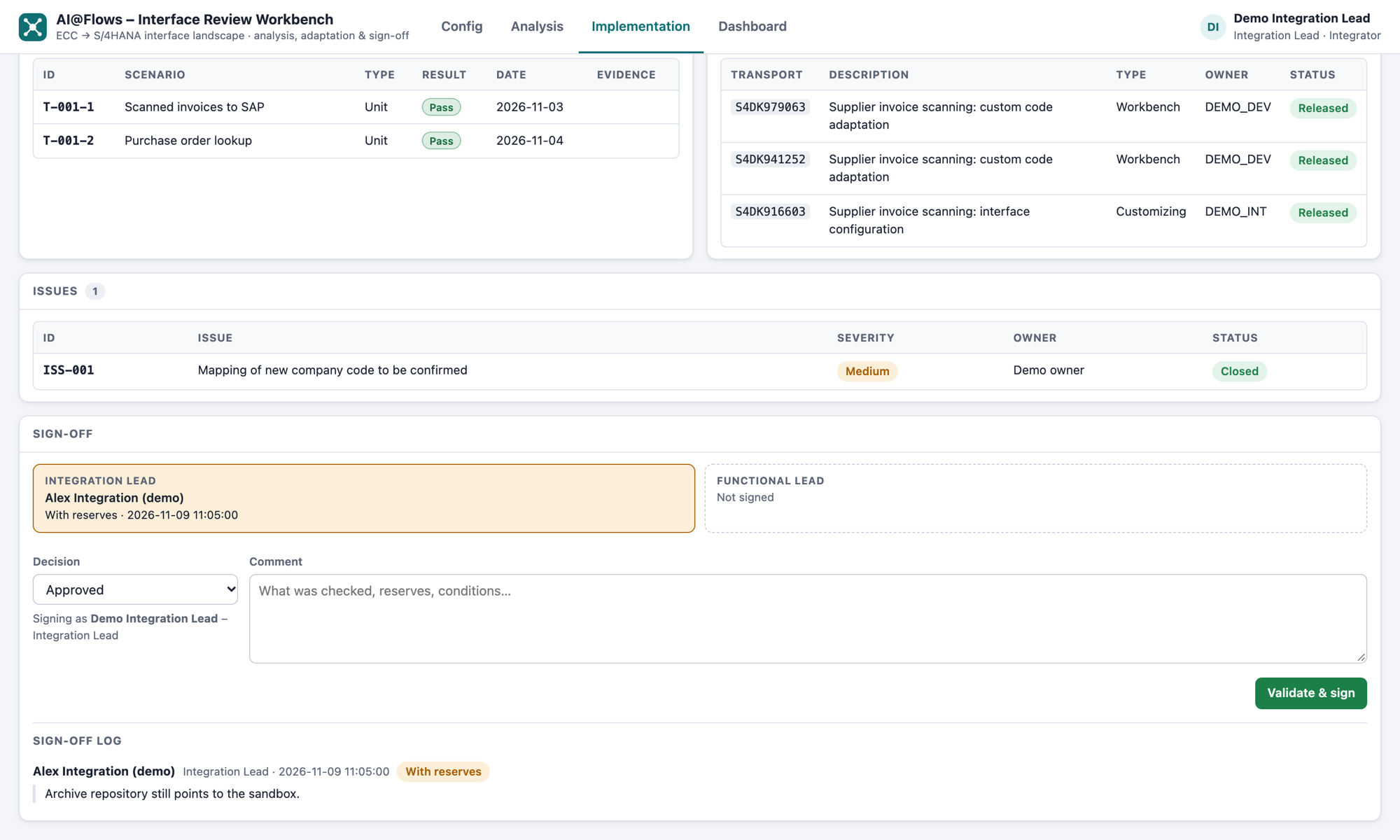
Rules:
- The latest signature of each role counts; you can sign again to change your decision.
- The overall decision is Rejected if any role rejected, With reserves if any role signed with reserves, Approved only when both roles approved, and Pending otherwise.
- Every signature is kept in the Sign-off log (who, role, decision, comment, time) and saved in
_config/IF_Signoffs.json, together with the report version that was signed. If the report was regenerated after a signature, the log flags it with earlier version of the report. - The next implementation report is expected to take the latest sign-offs and comments into account.
Review comments
Besides the sign-off (a decision), reviewers can write review comments on the implementation of each system and cycle. They work like the review comments of the Analysis page: sign in, click 💬 on a section of the interface detail (or 💬 Review comment at the top), fill in the form at the bottom and Save review. The Review comments view lists all comments of the selected system and cycle, closes the round and exports to CSV.
One field is added, Concerns, to say what the AI application should change:
| Concerns | What happens with the comment |
|---|---|
| Implementation | The AI application corrects the implementation report, or carries the point into the next cycle (next steps, issues) |
| Analysis | The implementation shows that the analysis is wrong or incomplete (a flow, technology or partner). The AI application writes a new version of the analysis file |
| Lesson learned | Added to the knowledge bases: the customer feedback base or the general best practices, depending on the Scope |
Review files are named IF_ImplReview_<SID>_<CYCLE>_R<nn>_<timestamp>.json. Unsaved comments are kept separately per system and cycle, so you can switch between them; the yellow banner reminds you of unsaved comments in other reviews.