🖥️ App Tab
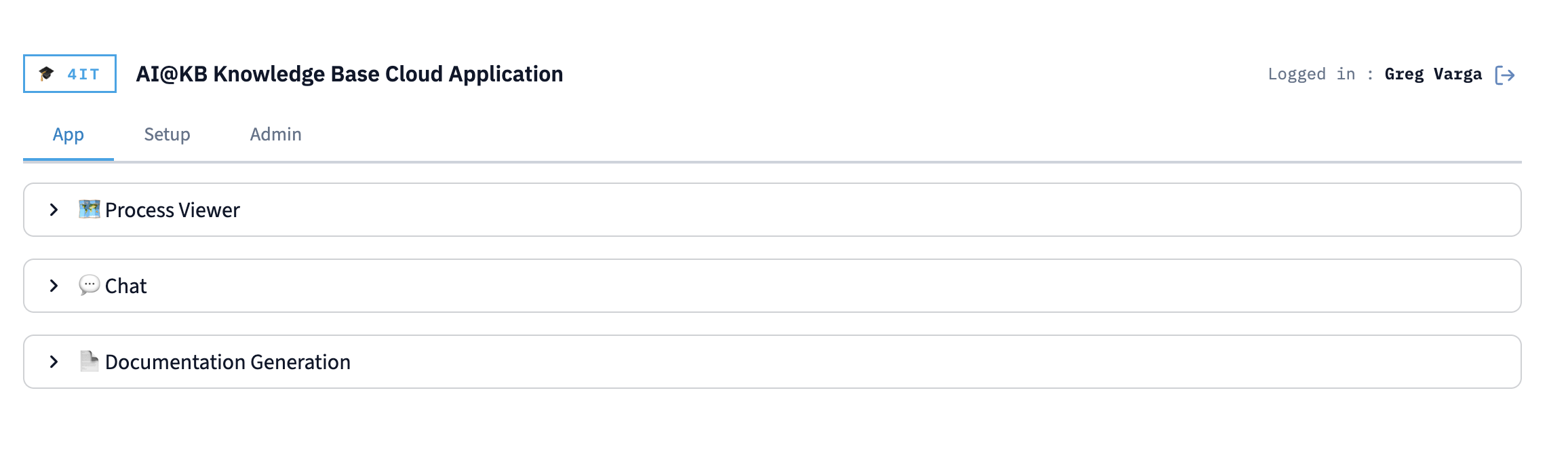
The AI@KB Cloud Application is organised into three main tab pages: App, Setup, and Admin. This page covers the App tab, which is the primary workspace for all users.
The App tab provides three interconnected panels:
| Panel | Purpose |
|---|---|
| Process Viewer | Visual exploration of SAP end-to-end business process flows |
| Chat | Conversational AI for querying SAP configuration and extracted data |
| Documentation Generation | Generate structured, data-validated documentation from your SAP system |
Process Viewer
The Process Viewer renders SAP business processes as interactive, structured flow diagrams — sourced directly from your system's configuration and transactional data. It gives teams an immediate visual understanding of how key end-to-end processes are configured in their specific SAP landscape.
Selecting a Process
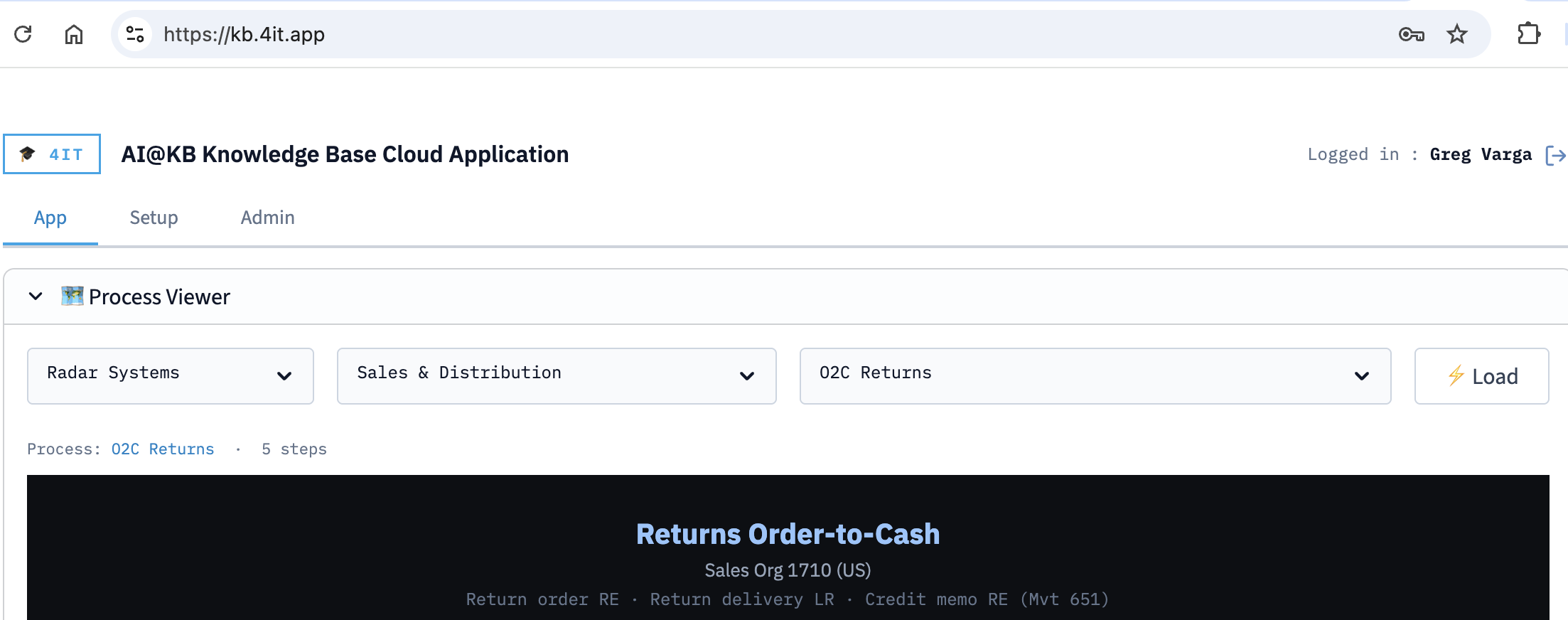
Use the three dropdowns to navigate to the process you want to view:
- System / Customer — select the SAP system or customer context
- Module — choose the functional area (e.g. Sales & Distribution, Finance, Logistics)
- Process — pick the specific end-to-end process (e.g. O2C Returns, Standard Order-to-Cash)
Once selected, click ⚡ Load to render the diagram. The status bar below the dropdowns confirms the process name and the number of steps it contains.
Viewing the Process Flow
The diagram renders each step of the business process as a colour-coded block, connected by directional arrows that represent the document or movement flow between them. Each block displays the relevant SAP document type, transaction codes, tables, and real transactional examples extracted from the system.
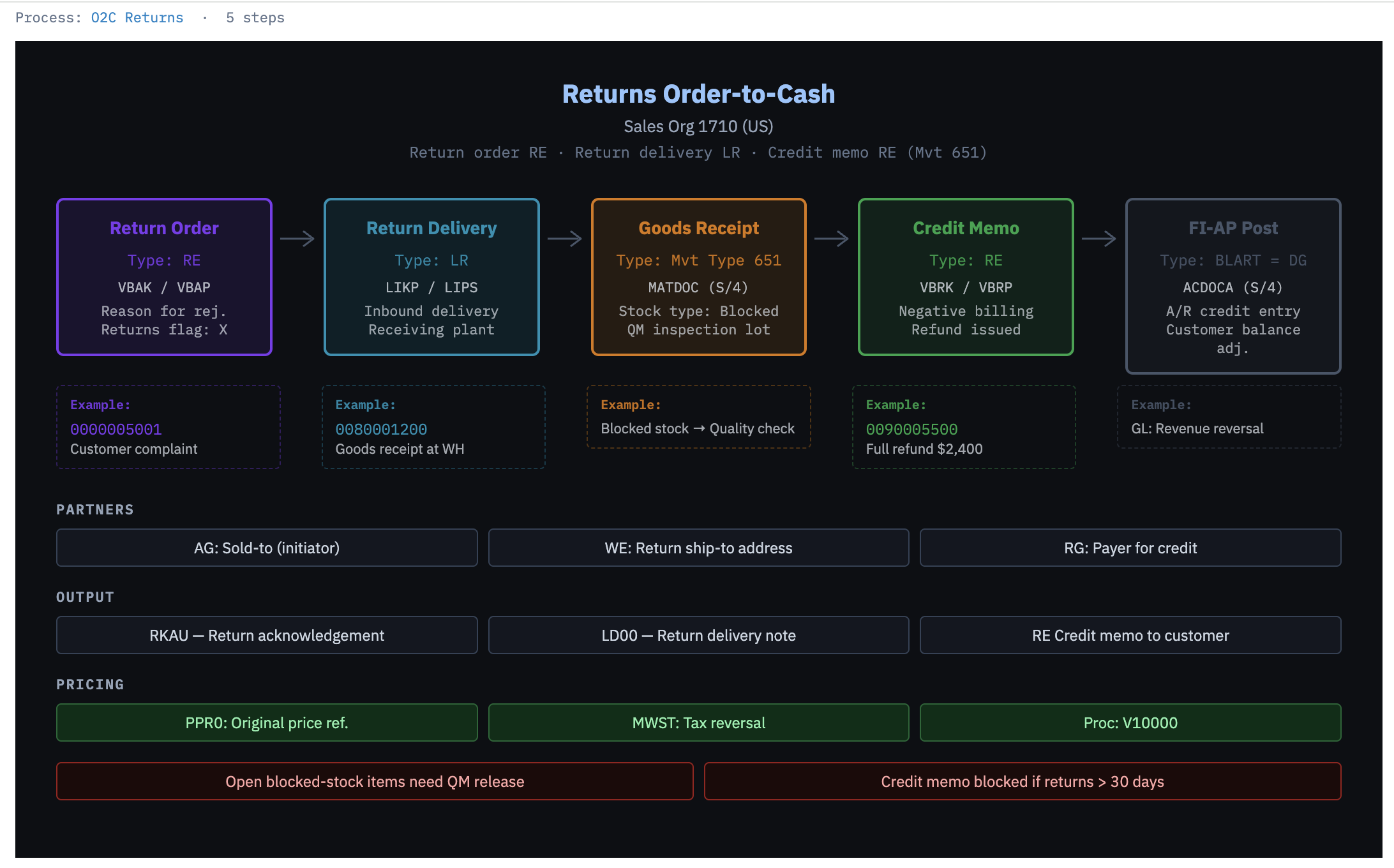
The diagram is structured in layers:
| Layer | Content |
|---|---|
| Process steps | Each SAP document type in sequence (e.g. Sales Order → Delivery → Goods Issue → Invoice → FI posting) |
| Partners | The partner functions involved at each step (Sold-to, Ship-to, Payer, etc.) |
| Output | Output types generated at each step (order confirmation, delivery note, invoice, etc.) |
| Pricing | Pricing procedures and key condition types active in the flow |
Every example shown in the Process Viewer — document numbers, quantities, amounts — is extracted directly from your SAP system. You are looking at how your system actually runs, not a generic template.
Chat
The Chat panel provides a conversational AI interface that understands your SAP system's configuration, SPRO settings, pricing schemas, document types, and extracted transactional data. Ask questions in plain language and receive context-aware, evidence-backed answers.
Asking a Question
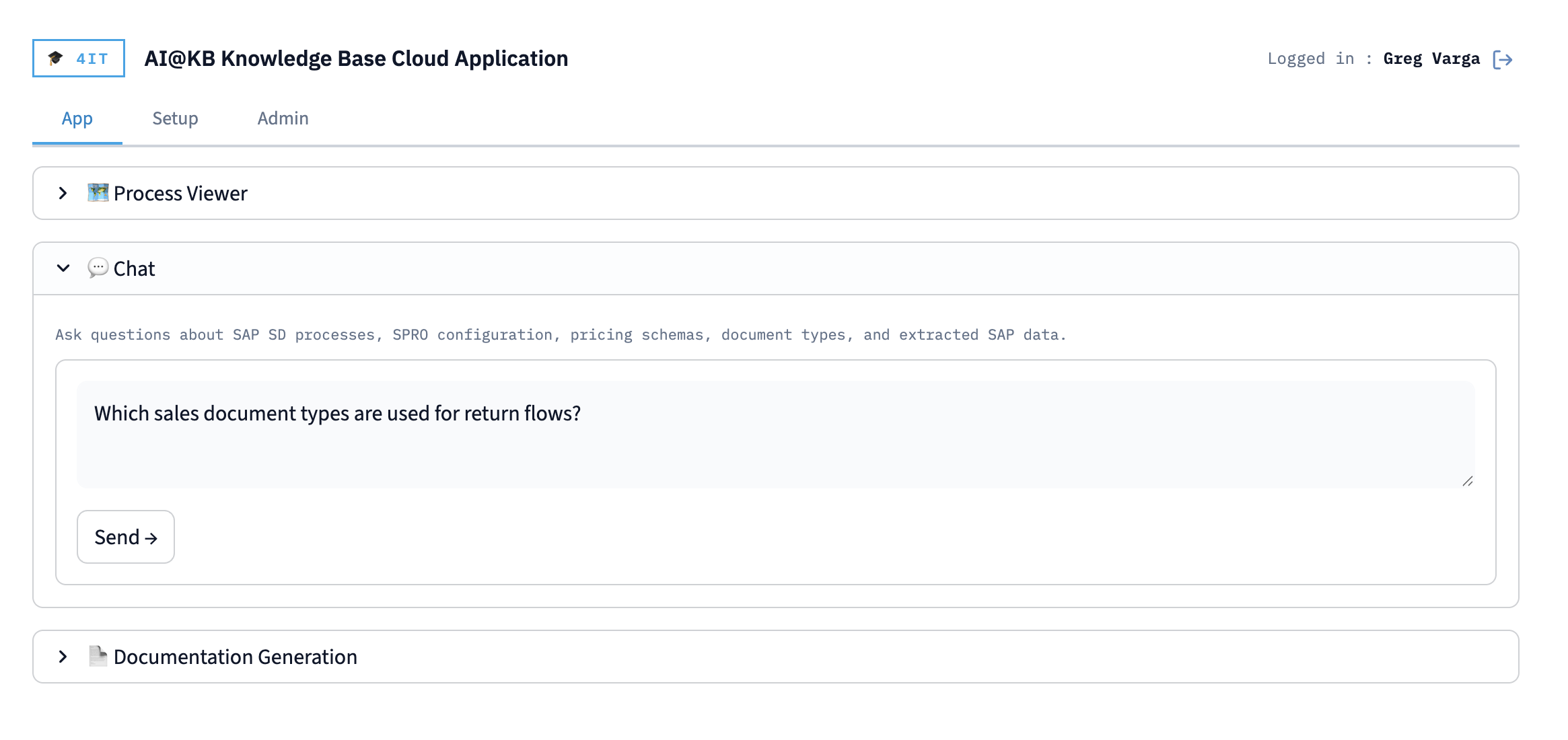
Type your question in the input area and click Send →. The placeholder text summarises the scope of what the Chat understands:
Ask questions about SAP SD processes, SPRO configuration, pricing schemas, document types, and extracted SAP data.
Structured Answers with Source References
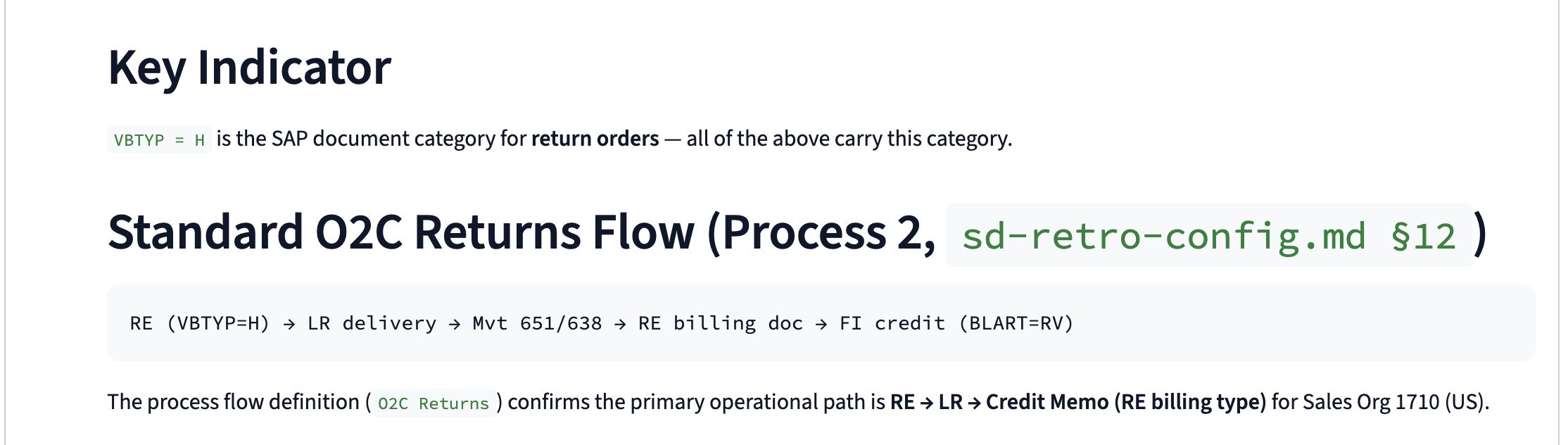
The Chat returns structured answers that reference the exact source files and configuration tables from which the information was drawn. Answers are formatted for clarity — tables, code blocks, and section references are used where appropriate.
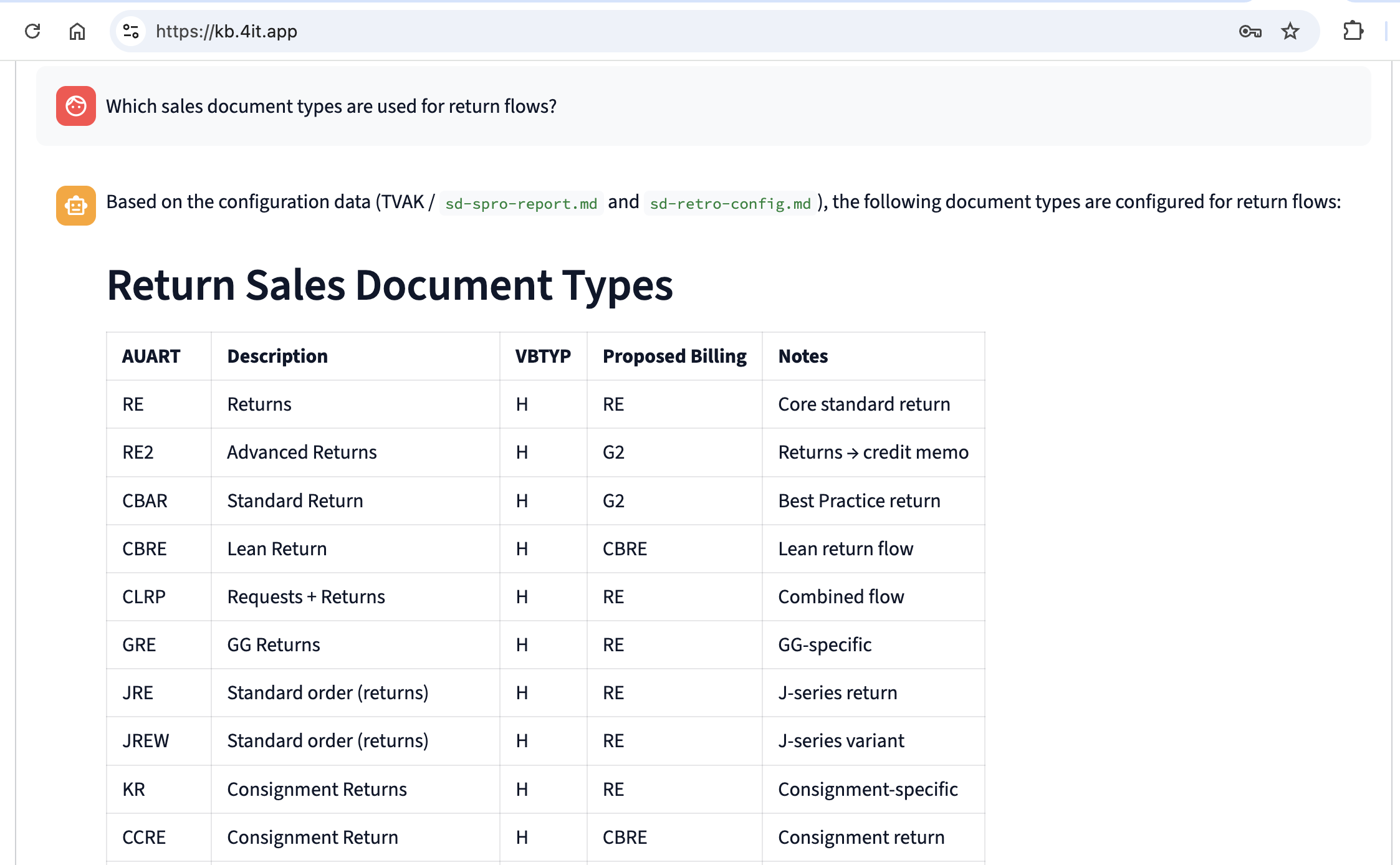
For more complex questions, the Chat provides layered responses: a summary finding followed by the underlying configuration evidence and process-level context.
Example questions you can ask:
- "Which sales document types are used for return flows?"
- "What pricing procedure is active for Sales Org 1710?"
- "How is free-of-charge delivery handled in this system?"
- "What EDI/IDoc types are configured for outbound delivery?"
- "Which delivery types are active in transactional data?"
Every answer includes a reference to the specific configuration file or data extract it was derived from (e.g. sd-spro-report.md, sd-retro-config.md §12). This makes it straightforward to verify findings and trace them back to the raw extracted data.
Documentation Generation
The Documentation Generation panel produces structured, data-validated documentation of your SAP system's configuration — automatically, based on the data extracted from your ERP. The output is a professional-grade reference document that combines SPRO configuration settings with evidence from real transactional data.
Selecting Content Sections
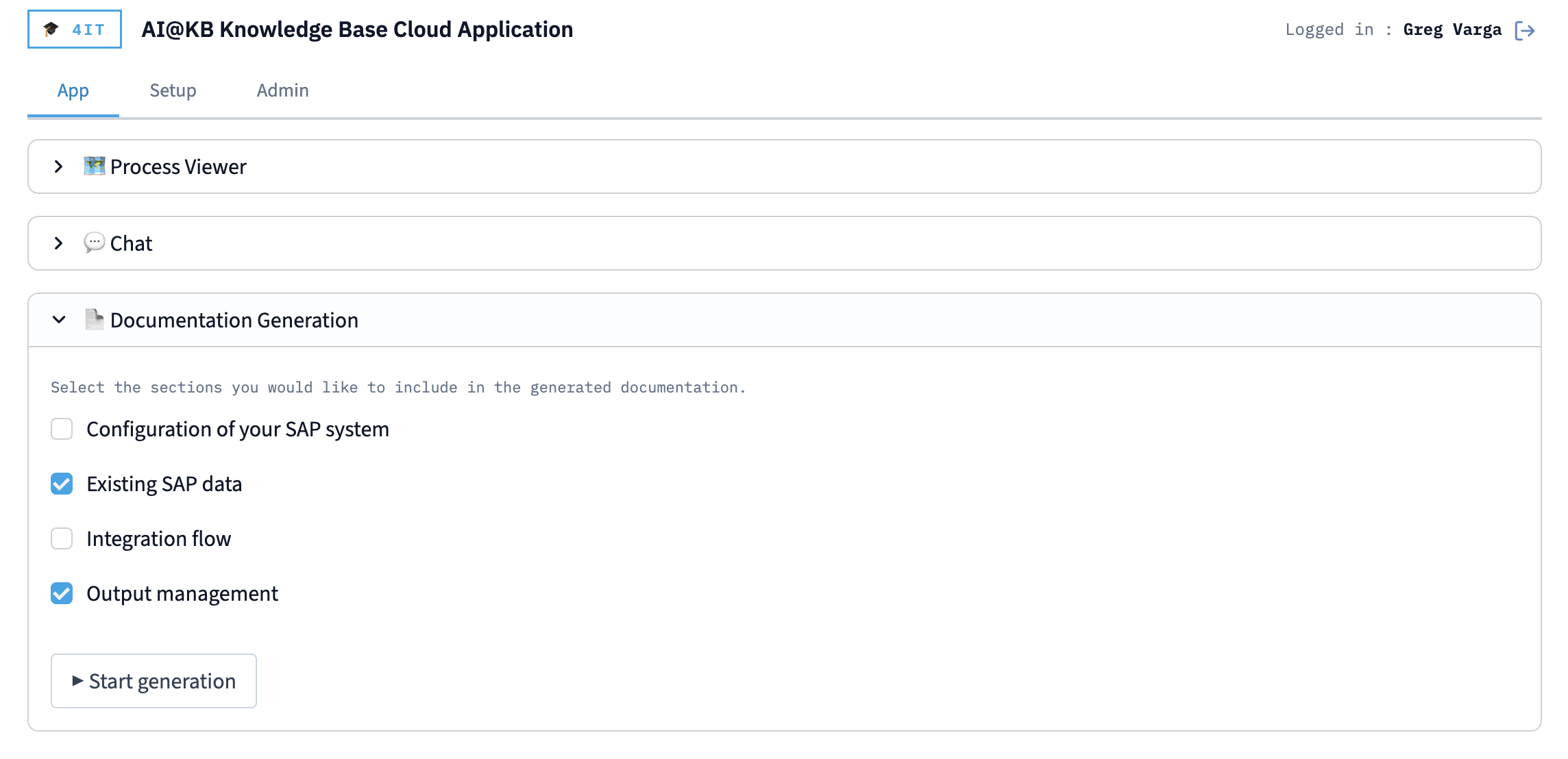
Choose which sections to include in the generated document by ticking the relevant checkboxes:
| Section | Content |
|---|---|
| Configuration of your SAP system | SPRO settings, customising tables, and configuration objects |
| Existing SAP data | Transactional data counts, key figures, and data-validated findings |
| Integration flow | EDI/IDoc configuration, output determination, and warehouse integration |
| Output management | Output types, NAST configuration, and print/EDI routing |
Click ▶ Start generation to trigger the document build.
Generation Confirmation
Once started, the application confirms that document preparation is underway and that the finished document will be delivered by email.
